
15 Best Free Drawing Software in 2026 (Top Pick)
Estimated reading time: 25 minutes, 37 secondsLast updated on July 28th, 2026 at 09:33 am
Are you searching for the best free drawing software in 2026?
With so many options available, finding the right tool can be overwhelming. If you’re a beginner experimenting with digital art or a professional looking for budget-friendly software, free tools today offer impressive features like realistic brushes, vector editing, and layering.
But which ones truly stand out? We’ve curated a list of 15 top free drawing software that provide pro-level capabilities without the cost. From digital painting to graphic design, there’s something for everyone. Let’s dive in and discover the perfect tool to bring your creativity to life!
What is Free Drawing Software?
Free drawing software is a type of digital tool that allows you to sketch, paint, and design artwork on a computer, tablet, or mobile device without any cost. Instead of using paper and ink, you get access to virtual brushes, colours, layers, and editing tools in one place. These programs are widely used by beginners, students, designers, and even professionals who want powerful features without paying for expensive software.
What makes free drawing software especially useful is its flexibility and ease of use. You can create everything from simple doodles to detailed illustrations, logos, and digital paintings. Most tools support pen tablets or touch screens, making the drawing experience feel natural and precise. Features like undo/redo, layers, and customizable brushes help you experiment freely without worrying about mistakes, which is a big advantage over traditional drawing.
Free drawing software also comes in different types based on your needs. Some are raster-based (best for painting and shading), while others are vector-based (ideal for logos and scalable designs). Many modern tools are lightweight, beginner-friendly, and available online or offline, making them accessible to anyone. Whether you’re learning digital art, designing graphics, or just exploring creativity, free drawing software is an easy and powerful way to get started.
15 Best Free Drawing Software in 2026
Why spend money on expensive tools when you can get top-notch drawing software for free? In this section, we’ve handpicked the best free drawing software that offers powerful features. Let’s take a look.
Best Free Drawing Software
1. Clip Studio Paint – Best for Comics
2. Corel Painter – Realistic Digital Painting Tool
3. Rebelle – Natural Watercolour Simulation Software
4. Adobe Fresco – Best for Digital Artists
5. ArtRage – Traditional Painting Style Software
6. PaintStorm Studio – Advanced Brush Engine Tool
7. GIMP – Free Open Source Drawing Tool
8. Krita – Best Free Digital Painting Software
9. Artweaver – Beginner Friendly Painting Software
10. Mischief – Infinite Canvas Drawing Software
11. Sketchbook – Simple and Clean Drawing Tool
12. Inkscape – Best Free Vector Drawing Software
13. Sketchpad – Free Online Drawing Tool
14. MyPaint – Lightweight Digital Painting Software
15. Realistic Paint Studio – Realistic Painting Experience Tool
1. Clip Studio Paint – Best for Comics
Clip Studio Paint is a powerful digital drawing software widely used by comic artists, illustrators, and beginners who want a professional yet flexible tool. It is especially popular for manga, webcomics, and detailed line art because of its smooth brush engine and precise pen pressure support, which makes digital strokes feel closer to traditional drawing.
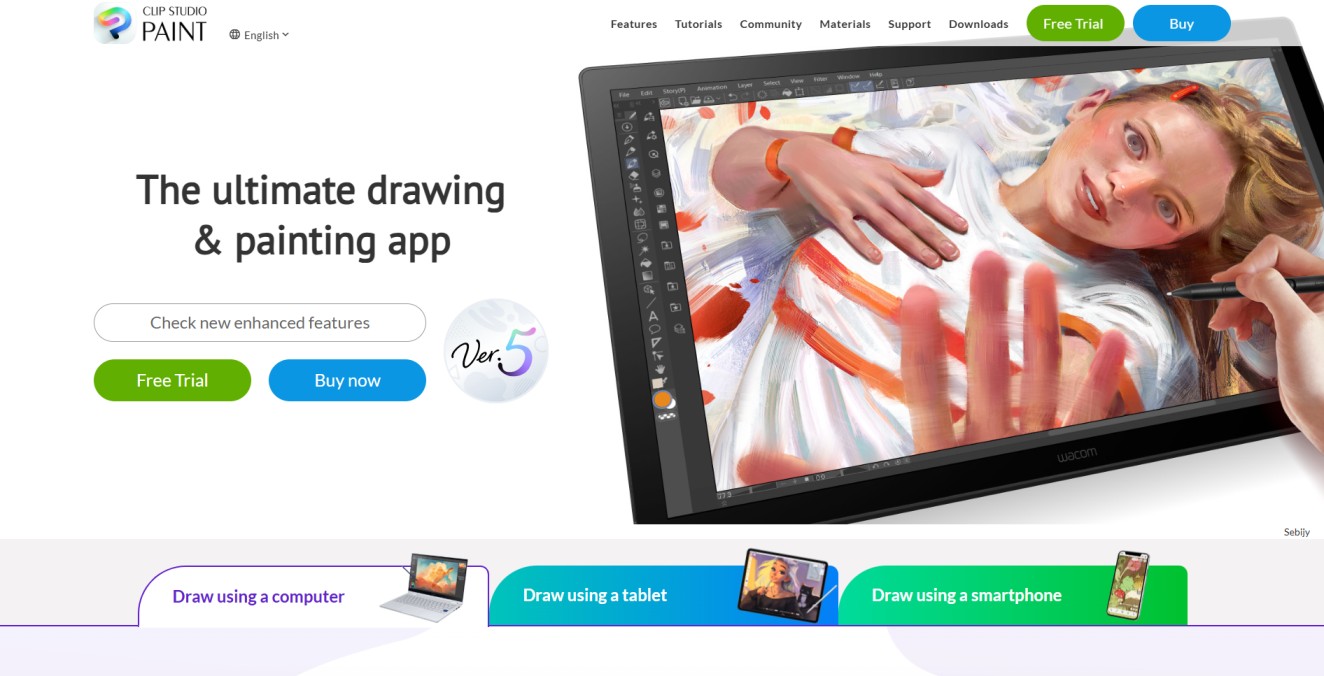
The software stands out with its large collection of ready-to-use brushes, customizable tools, and support for both raster and vector layers. Artists can create clean linework, experiment with different styles, and manage complex artwork using advanced layer controls. It also includes built-in animation features, making it suitable for creating short animations and motion-based projects.
In addition, Clip Studio Paint provides helpful features like color mixing tools, adjustable 3D models for pose reference, and deep brush customization. These tools help improve workflow efficiency and accuracy, especially for character design and storytelling. Overall, it is a well-balanced drawing software that offers both creative freedom and professional-level control for digital artists.
Key Features of Clip Studio Paint
- Natural and Smooth Drawing Experience: Provides high-quality brushes designed for natural and fluid strokes, allowing artists to create detailed line art with precision and control.
- Advanced Pressure Sensitivity: Supports pen pressure and stylus input, helping you adjust line thickness and opacity easily for more expressive and realistic drawings.
- Diverse Painting Styles: Offers a wide range of brushes and customization options, enabling artists to experiment with different art styles, textures, and creative effects.
- Realistic Color Mixing: Allows you to mix colors naturally on the canvas, just like traditional painting, giving more depth and realism to your artwork.
- Enhanced Brush Behavior: Simulates real paint blending and color interaction, helping create smooth gradients and lifelike painting effects.
- Advanced Color Selection Tools: Allows you to create and customize colors using color wheels, palettes, and sliders, making it easy to pick the exact shade for your artwork.
- Extensive Brush Library: Offers thousands of pre-designed brushes and pens, giving artists a wide variety of tools for sketching, painting, and detailed illustrations.
- Customizable Brush Settings: Enables full control over brush size, texture, opacity, and pressure sensitivity, allowing you to tailor tools according to your drawing style.
Pros and Cons
Pros
- rn t
- Highly customizable brush engine rn t
- Clean and scalable vector linework rn t
- Built-in frame-by-frame animation tools rn t
- Advanced color mixing and palettes rn t
- One-time purchase option available
Cons
- rn t
- Steep learning curve for beginners rn t
- Limited animation frames in base version rn t
- Can be heavy on low-end systems
Best For:
- Illustrators & Comic Artists – Ideal for manga, comics, and webtoons with precise linework, vector layers, panel tools, and advanced layer management.
- Digital Painters – Supports natural brush strokes, realistic color mixing, and deep brush customization for creating detailed digital paintings.
- Animators – Includes frame-by-frame animation tools with onion skinning, suitable for short animations, GIFs, and motion-based artwork
- .Character Designers – Useful for creating accurate poses and proportions with adjustable 3D models and reference tools.
2. Corel Painter – Realistic Digital Painting Tool
Corel Painter is a professional digital painting software designed to replicate the look and feel of traditional art. It is widely used by illustrators, fine artists, and concept designers because of its advanced brush engine that realistically simulates mediums like oil, watercolor, and acrylic. Each stroke behaves naturally, offering texture, blending, and depth similar to real-world painting.
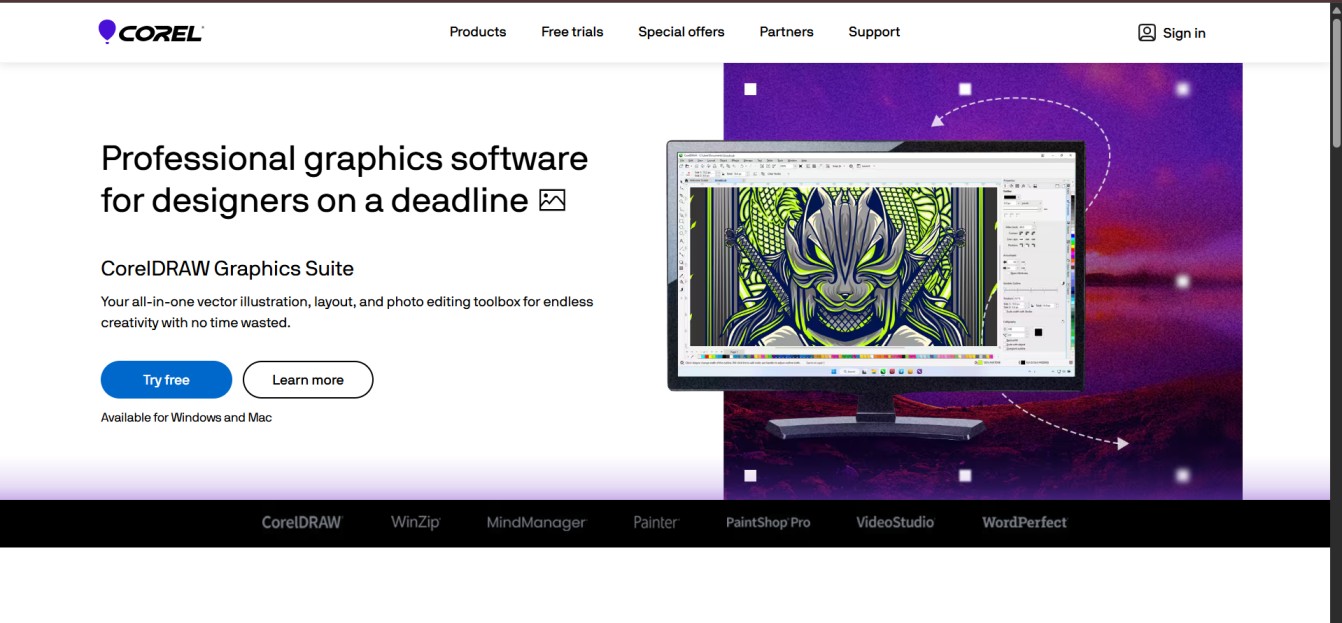
The software stands out with its extensive brush library, customizable tools, and realistic surface textures such as paper and canvas. Artists can fine-tune brushes, control color mixing, and create detailed artwork with high precision. Its GPU-accelerated performance ensures smooth and responsive painting, even when working on large or high-resolution projects.
Corel Painter also provides a structured yet flexible workflow, making it suitable for both detailed illustrations and expressive artwork like portraits and landscapes. With its focus on realism and control, it is a strong choice for artists who want a traditional painting experience in a digital environment.
Key Features of Corel Painter
- Realistic Brush Engine: Delivers natural painting experience with brushes that simulate oil, watercolor, acrylic, and other traditional media with lifelike textures and blending.
- Custom Brush Creation: Allows artists to customize existing brushes or design new ones with advanced settings for texture, stroke behavior, and performance.
- Paper & Canvas Texture Simulation: Recreates real-world surfaces like paper and canvas, adding depth, grain, and authenticity to digital artwork.
- Advanced Color Blending Tools: Enables smooth and natural color mixing directly on the canvas, helping create realistic gradients and shading effects.
- GPU-Accelerated Performance: Uses GPU optimization to improve brush speed, responsiveness, and overall performance, especially for high-resolution projects.
Pros and Cons
Pros
- rn t
- Ultra-realistic brush engine with natural media simulation rn t
- Extensive brush customization and control rn t
- Realistic paper and canvas texture support rn t
- Advanced color blending and mixing tools rn t
- GPU-accelerated performance for smoother workflow
Cons
- rn t
- Higher cost compared to many alternatives rn t
- Requires strong hardware for best performance rn t
- Steeper learning curve for new users
Best For:
- Fine Artists & Painters – Ideal for traditional-style painting with realistic brushes, natural media simulation, and canvas texture support.
- Illustrators & Concept Artists – Great for detailed artwork using customizable brushes, advanced blending tools, and layered workflows.
- Professional Digital Artists – Suited for high-end projects requiring precision, performance, and advanced painting capabilities.
3. Rebelle – Natural Watercolour Simulation Software
Rebelle is a digital painting software built to closely replicate real-world watercolor and acrylic techniques. It uses physics-based paint simulation to recreate how pigments spread, blend, and dry on paper, making it a strong choice for artists who want a traditional painting feel in a digital format.
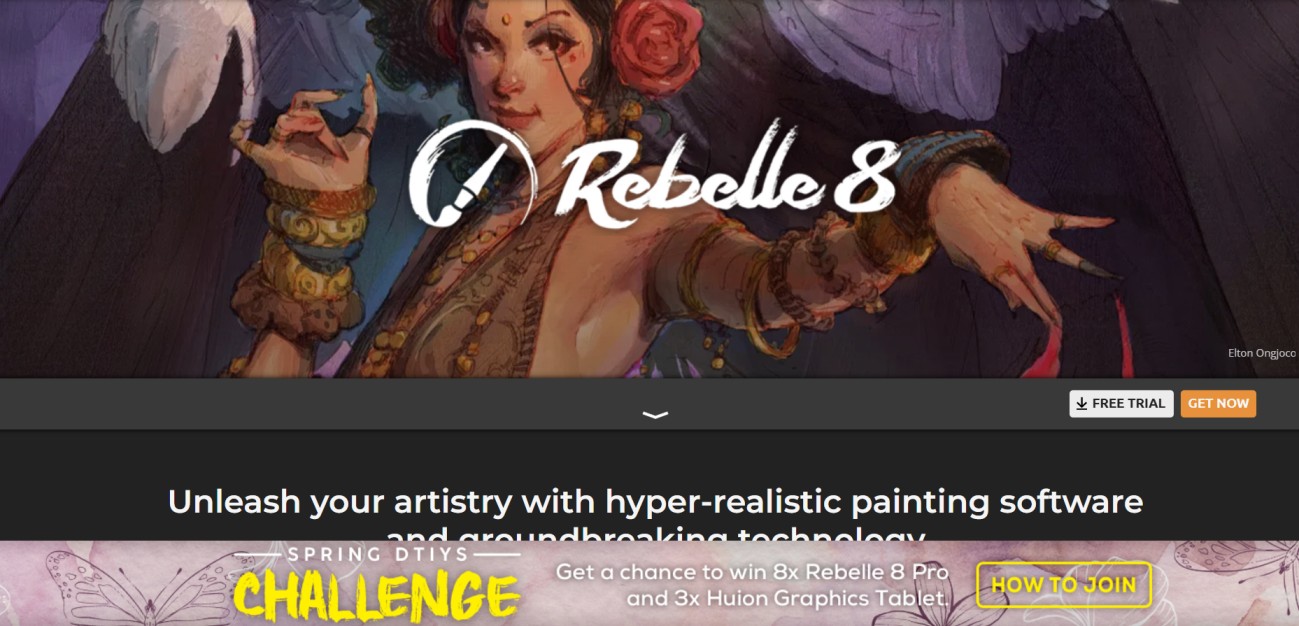
The software stands out for its realistic behavior, including wet-on-wet effects, natural color diffusion, and canvas interaction. Artists can control paint flow, create drips, and experiment with different textures using paper and canvas simulations. It also supports customizable brushes and multiple painting styles, allowing flexibility for both beginners and experienced painters.
Rebelle is especially useful for creating expressive artwork such as watercolor paintings, illustrations, and textured designs. With its focus on realism and control, it provides a natural and immersive painting experience that closely matches traditional art techniques while offering the convenience of digital tools.
Key Features of Rebelle
- Realistic Watercolor Simulation: Uses physics-based paint simulation to replicate real watercolor behavior, including pigment diffusion, wet-on-wet effects, and natural drying.
- Acrylic & Ink Painting Tools: Supports realistic acrylics and ink brushes, allowing artists to create layered textures and detailed strokes beyond watercolor styles.
- Tilt, Drip & Flow Control: Lets artists control paint movement, including tilting the canvas, creating drips, and managing water flow for dynamic effects.
- Realistic Paper & Canvas Textures: Simulates surfaces like watercolor paper and canvas, adding depth, grain, and a traditional art feel to digital paintings.
- Customizable Brush Settings: Offers full control over brush size, opacity, water level, and texture, enabling precise and personalized painting styles.
Pros and cons
Pros
- rn t
- Physics-based watercolor simulation for realistic effects rn t
- Natural paint flow with tilt, drip, and wet control rn t
- Realistic paper and canvas texture support rn t
- Customizable brushes with water and pigment control rn t
- Clean and intuitive interface for smooth workflow
Cons
- rn t
- Limited vector and advanced illustration tools rn t
- Not ideal for complex animation or design work rn t
- Can be resource-intensive on lower-end systems
Best For:
- Traditional Artists Moving to Digital – Ideal for painters who want a natural media experience with realistic watercolor behavior, paper textures, and organic brush response.
- Watercolor & Acrylic Focused Artists – Best for creating lifelike paint effects with fluid blending, pigment diffusion, and controlled drip and flow dynamics.
- Creative & Experimental Painters – Suitable for artists exploring physics-based painting, allowing unique effects through water interaction, layering, and texture-based techniques.
4. Adobe Fresco – Best for Digital Artists
Adobe Fresco is a modern drawing and painting app designed for artists who want a smooth and natural digital experience. It combines both vector and raster brushes in one workspace, making it suitable for everything from clean illustrations to detailed paintings. This flexibility allows artists to switch styles without changing software, improving workflow and productivity.
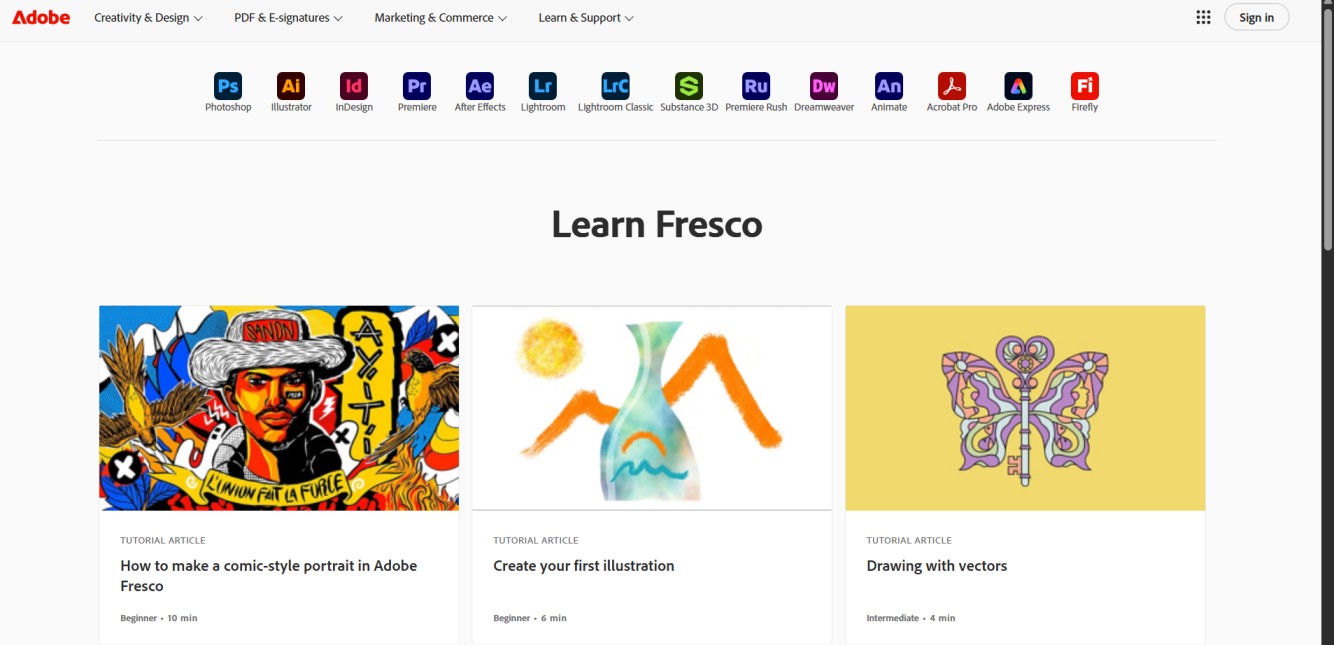
One of its standout features is the Live Brushes system, which realistically simulates watercolor and oil paints. Colors blend, spread, and interact naturally on the canvas, helping artists achieve traditional painting effects in a digital format. Along with this, its touch and stylus-optimized interface ensures precise control, especially on devices like iPads and Windows tablets.
Adobe Fresco also supports cloud syncing, allowing users to access their projects across multiple devices with automatic saving. This makes it a reliable option for artists who work on the go or across platforms. Overall, it offers a balanced combination of performance, ease of use, and creative flexibility for digital artists.
Key features of adobe fresco
- Live Brushes for Realistic Painting: Uses advanced brush technology to simulate watercolor and oil paints, allowing colors to blend, spread, and interact naturally for a lifelike painting experience.
- Vector and Raster Drawing Support: Allows seamless switching between vector and raster brushes, enabling both scalable artwork and detailed illustrations within the same project.
- Cloud Sync Across Devices: Syncs artwork through Adobe Cloud, making it easy to access, edit, and save projects across devices with automatic backup and version history.
- Touch and Stylus Optimized Controls: Designed for tablets and touch devices with intuitive gestures for zooming, rotating, and brush control, improving overall workflow efficiency.
- Time-Lapse Drawing Recording: Automatically records the drawing process, allowing artists to replay their work, share progress, or create tutorial content.
Pros and Cons
Pros
- rn t
- Realistic Live Brushes for watercolor and oil effects rn t
- Seamless vector and raster workflow integration rn t
- Cloud sync with auto-save across devices rn t
- Touch and stylus optimized for smooth control rn t
- Built-in time-lapse drawing playback
Cons
- rn t
- Full features require Adobe subscription rn t
- Limited functionality on non-touch desktops rn t
- Fewer advanced tools than Photoshop for editing
Best For:
- Illustrators & Digital Artists – Ideal for creating both vector and raster artwork with flexible brushes, smooth workflows, and precision control.
- iPad & Tablet Users – Best suited for touch and stylus-based drawing with gesture controls and optimized performance on iPads and Windows devices.
- Painters & Sketch Artists – Great for realistic painting using Live Brushes that simulate watercolor and oil effects with natural blending.
- Creative Professionals on the Go – Perfect for artists who need cloud syncing and cross-device access to work anytime, anywhere
5. ArtRage – Traditional Painting Style Software
ArtRage is a digital painting software built to replicate the feel of real-world art materials. It focuses on natural media tools like oil paints, watercolors, and pastels that behave realistically on canvas, making it a strong choice for artists who prefer a traditional painting approach in a digital environment.
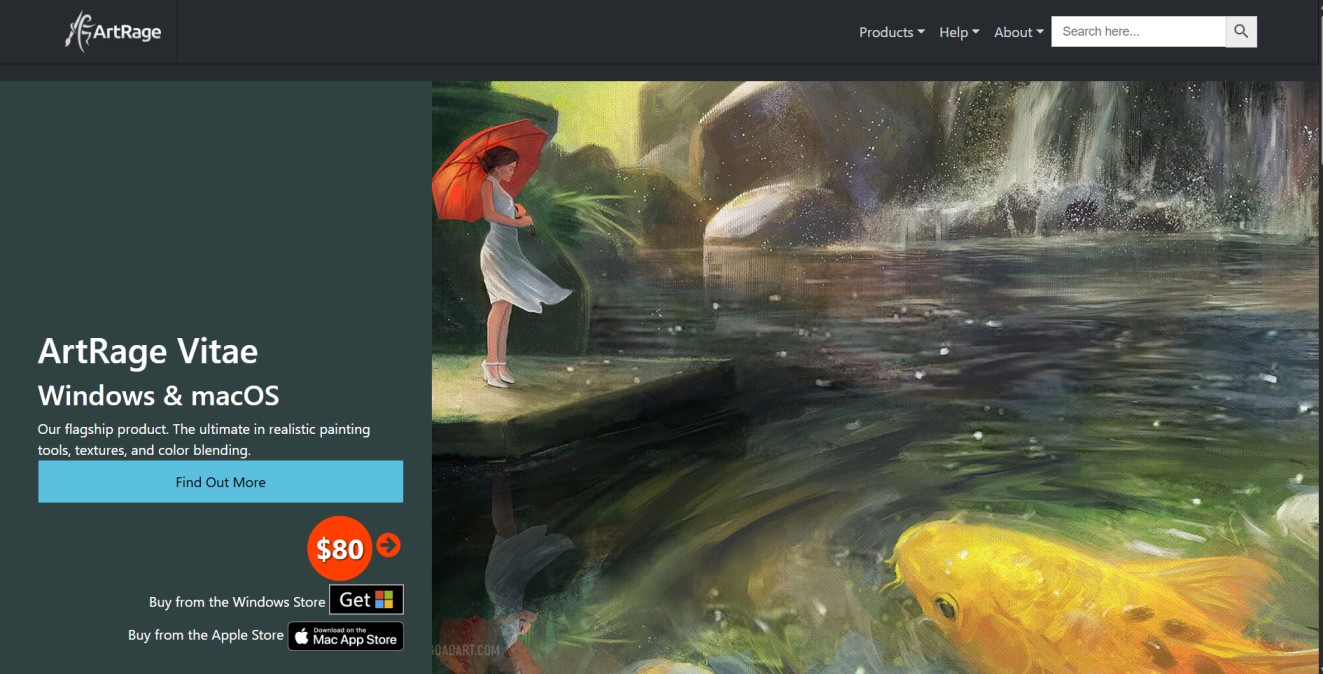
What sets ArtRage apart is its emphasis on realistic color mixing and texture interaction. Paint can be blended directly on the canvas, strokes react naturally, and surface textures add depth to the artwork. Combined with its layer-based workflow and customizable tools, it allows artists to create detailed and expressive pieces with better control.
The interface is simple and beginner-friendly, while still offering enough features for serious artists. Whether you’re sketching, painting portraits, or experimenting with textures, ArtRage provides a smooth and immersive experience that closely mirrors traditional art techniques.
key features of Artrage
- Realistic Paint Simulation: Replicates traditional painting behavior with natural color mixing, brush strokes, and medium effects like oil, watercolor, and pastel for lifelike artwork.
- Advanced Color Blending Tools: Enables smooth transitions and realistic color interaction using techniques like layering, glazing, and palette knife-style blending.
- Canvas & Paper Texture Control: Offers customizable surface textures, including grain, depth, and paint thickness, to create an authentic traditional art feel.
- Layer-Based Editing System: Supports multiple layers with blending modes, masking, and organization tools for managing complex compositions efficiently.
- Customizable Brushes & Tools: Provides flexible brush settings, allowing artists to adjust size, opacity, texture, and flow for different styles and creative needs.
Pros and Cons
Pros
- rn t
- Realistic natural media tools (oil, watercolor, pastel) rn t
- Natural color mixing directly on canvas rn t
- Customizable canvas and paper textures rn t
- Layer support with blending and masking rn t
- Simple, beginner-friendly interface
Cons
- rn t
- Limited advanced photo editing tools rn t
- Fewer features than high-end design software rn t
- May slow down on large or high-resolution files
Best For:
- Traditional Artists Going Digital – Ideal for painters who want realistic oils, watercolors, and natural canvas interaction in a digital setup.
- Beginners & Hobby Artists – Easy-to-use interface with intuitive tools, perfect for learning and casual creative work.
- Illustrators & Sketch Artists – Suitable for expressive artwork with natural textures, brush strokes, and color blending..
6. PaintStorm Studio – Advanced Brush Engine Tool
PaintStorm Studio is a powerful digital painting software built for artists who want precise control over every brushstroke. It is especially popular among illustrators and concept artists due to its advanced brush engine and smooth performance on high-resolution canvases. The software focuses on delivering a fast, responsive experience without compromising on detail or accuracy.
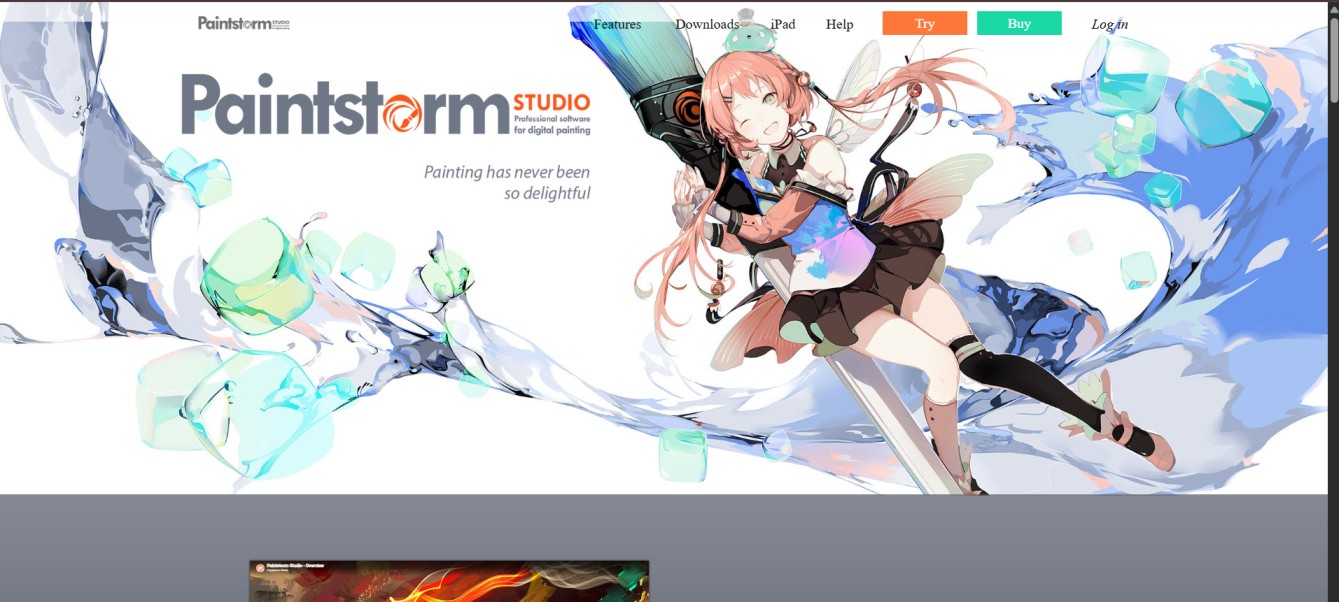
What makes it stand out is its deep brush customization, advanced blending modes, and color correction tools that help create professional-quality artwork. Features like canvas texture control, reference panels, and time-lapse recording add more flexibility to the workflow. Overall, PaintStorm Studio is a strong choice for artists who prioritize control, speed, and detailed painting capabilities in one platform.
Key Features of Painstorm
- Seamless Drawing Mode: Allows continuous and distraction-free workflow, helping artists switch tools and edit smoothly without interruptions.
- Clone and Reference Tools: Includes clone tool and reference panel for copying elements and maintaining accuracy while working on detailed artwork.
- Advanced Brush Collection System: Supports brush sets with unique shapes and textures, enabling more creative and dynamic stroke variations.
- Custom Hotkey Controls: Lets users assign shortcuts to sliders and tools, improving speed and efficiency during the drawing process.
- Time-Lapse Recording & Project Stats: Tracks drawing sessions with time-lapse video and statistics like stroke count and total work time.
- Canvas Texture Control: Provides adjustable canvas textures to add depth and a more natural painting feel.
- Smart Selection & Auto-Fill Tools: Includes auto-hide selection and gradient-based auto-fill options for faster coloring and editing.
- Fast Export Options: Offers quick export with multiple settings, making it easy to save and share artwork in different formats.
Pros and cons
Pros
- rn t
- Highly customizable brush engine for precise control rn t
- Advanced blending modes for smooth color transitions rn t
- Built-in color correction and tone adjustment tools rn t
- Pressure sensitivity support for natural strokes rn t
- Optimized performance for high-resolution canvases
Cons
- rn t
- Complex interface for beginners rn t
- Can lag on low-end systems rn t
- Limited built-in learning resources
Best For
- Professional Digital Artists – Ideal for precise brush control, advanced blending, and high-detail artwork on complex projects.
- Concept Artists & Illustrators – Suitable for character design, environment art, and storytelling with flexible brushes and layer workflows.
- High-Resolution & Speed Painters – Great for large canvases, fast rendering, and efficient multi-layer painting without workflow lag.
7. GIMP – Free Open Source Drawing Tool
GIMP (GNU Image Manipulation Program) is a powerful, free, and open-source software used for image editing, graphic design, and digital art. It is widely adopted by designers, photographers, and artists who need professional-level tools without paying for premium software. With support for layers, masks, and advanced editing features, GIMP can handle everything from basic edits to complex creative projects.
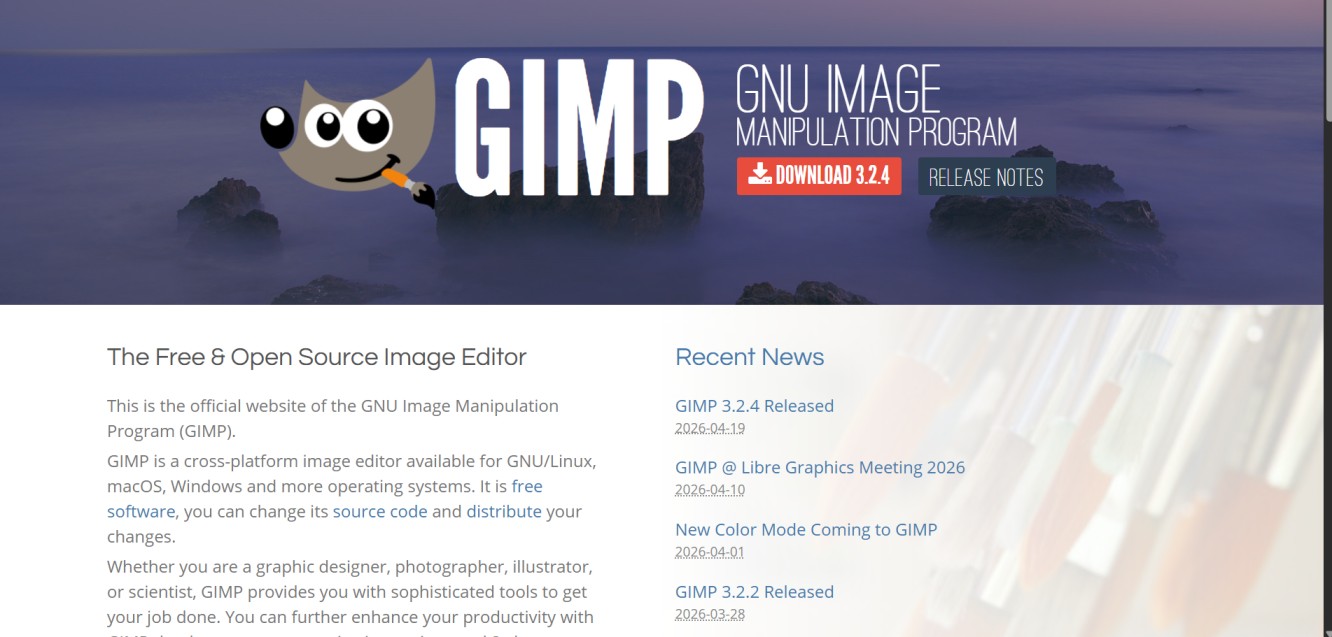
The software stands out for its flexibility and customization. Users can enhance functionality through plugins and scripting, while its customizable interface allows a tailored workflow. GIMP also includes essential tools like color correction, retouching, cloning, and brush-based drawing, making it suitable for both photo editing and digital painting tasks.
While it may have a learning curve for beginners, GIMP remains a strong alternative to paid tools due to its cross-platform availability and active community support. Overall, it is a reliable choice for users who want a feature-rich, cost-free solution for creative and professional work.
Key features of GIMP
- Layer-Based Editing System: Supports non-destructive editing with layers, masks, and blending modes for better control over complex compositions.
- Customizable Brushes & Tools: Offers a wide range of brushes with adjustable settings and supports custom brush creation for different art styles.
- Advanced Photo Editing Tools: Includes color correction, cloning, healing, and retouching features for high-quality image editing.
- Plugin & Script Support: Extends functionality through third-party plugins and scripting (e.g., Python), enabling automation and workflow customization.
- Cross-Platform Compatibility: Runs smoothly on Windows, macOS, and Linux, making it accessible across different systems.
Pros & Cons
Pros
- rn t
- Completely free and open-source software rn t
- Strong plugin and customization support rn t
- Powerful tools for editing and digital art rn t
- Works well on low to mid-range systems rn t
- Active community with regular updates
Cons
- rn t
- Interface can feel complex for beginners rn t
- Limited native support for some advanced workflows rn t
- Performance may vary with heavy files
Best For
- Graphic Designers & Photo Editors – Ideal for image editing, retouching, and graphic design with layers, masks, and color tools.
- Budget-Friendly Digital Artists – Great free alternative for painting and creative work with customizable brushes and tools.
- Advanced Users & Developers – Perfect for users who need plugin support, scripting, and deep customization for flexible workflows.
8. Krita – Best Free Digital Painting Software
Krita is a free, open-source digital painting software built specifically for artists, illustrators, and comic creators. It is widely used for concept art, digital illustrations, and comics due to its powerful brush engine and artist-focused tools. Unlike general editing software, Krita is designed purely for drawing and painting, offering a smoother and more focused creative workflow.
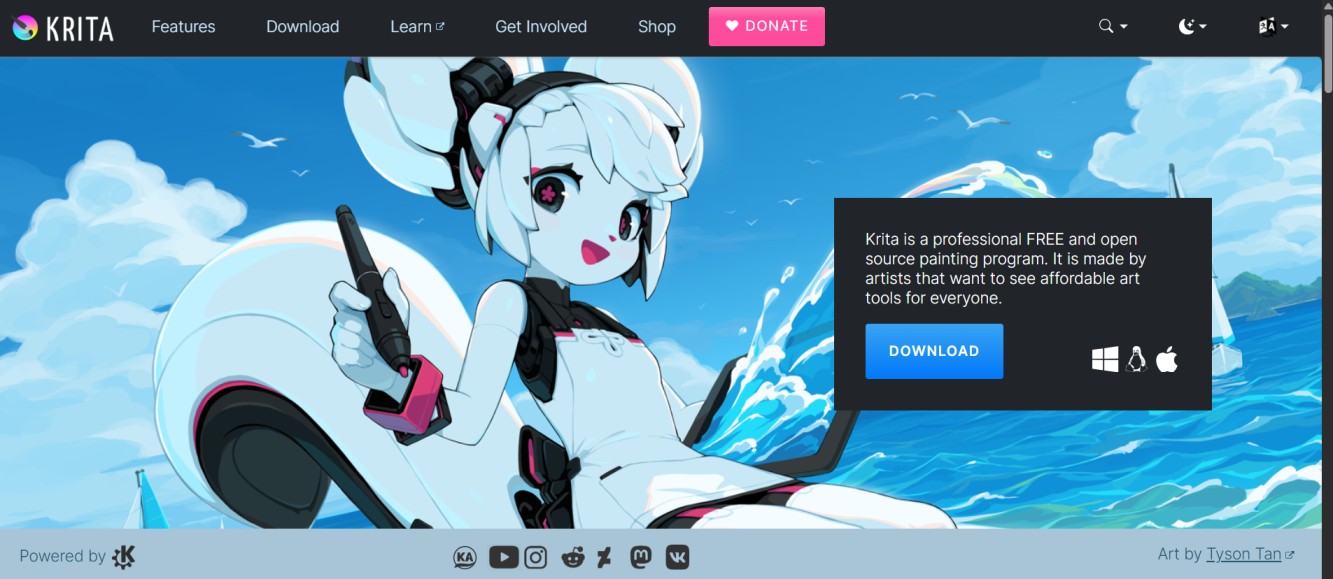
It features a large collection of customizable brushes, advanced blending tools, and essential options like layers, stabilizers, and wrap-around mode for pattern design. Krita also includes basic animation support and runs efficiently across platforms with regular updates. Overall, it is a strong choice for both beginners and professionals looking for a reliable and feature-rich free drawing software.
Key Features of Kirta
- Advanced Brush Engine (100+ Presets): Comes with a wide range of pre-built brushes and full customization options for texture, flow, and stroke behavior.
- Frame-by-Frame Animation Support: Includes built-in animation tools with timeline and onion skinning, suitable for creating GIFs and short animations.
- Layer Management with Blending Modes: Supports layers, masks, and multiple blending modes to build complex, non-destructive artwork.
- Wrap-Around Mode for Seamless Design: Enables continuous canvas edges, making it easy to create repeating textures and patterns.
- Stroke Stabilization Tools: Provides stabilizers to smooth out hand movement and produce clean, controlled linework.
Pros & Cons
Pros
- rn t
- Completely free and open-source (no subscription required) rn t
- Built specifically for digital painting and illustration workflows rn t
- Powerful brush engine with extensive presets and customization rn t
- Supports frame-by-frame animation with timeline tools rn t
- Clean, customizable interface designed for artists
Cons
- rn t
- Can be resource-intensive on low-end systems rn t
- Not ideal for advanced photo editing tasks rn t
- Limited native support for CMYK workflows
Best For
- Digital Painters & Illustrators – Ideal for painting-focused workflows with a powerful brush engine, blending tools, and layer support.
- Comic & Manga Artists – Suitable for panel creation, inking, and storytelling with dedicated comic and layout features.
- Indie Animators & Creators – Great for frame-by-frame animation, animatics, and short creative motion projects.
9. Artweaver – Beginner Friendly Painting Software
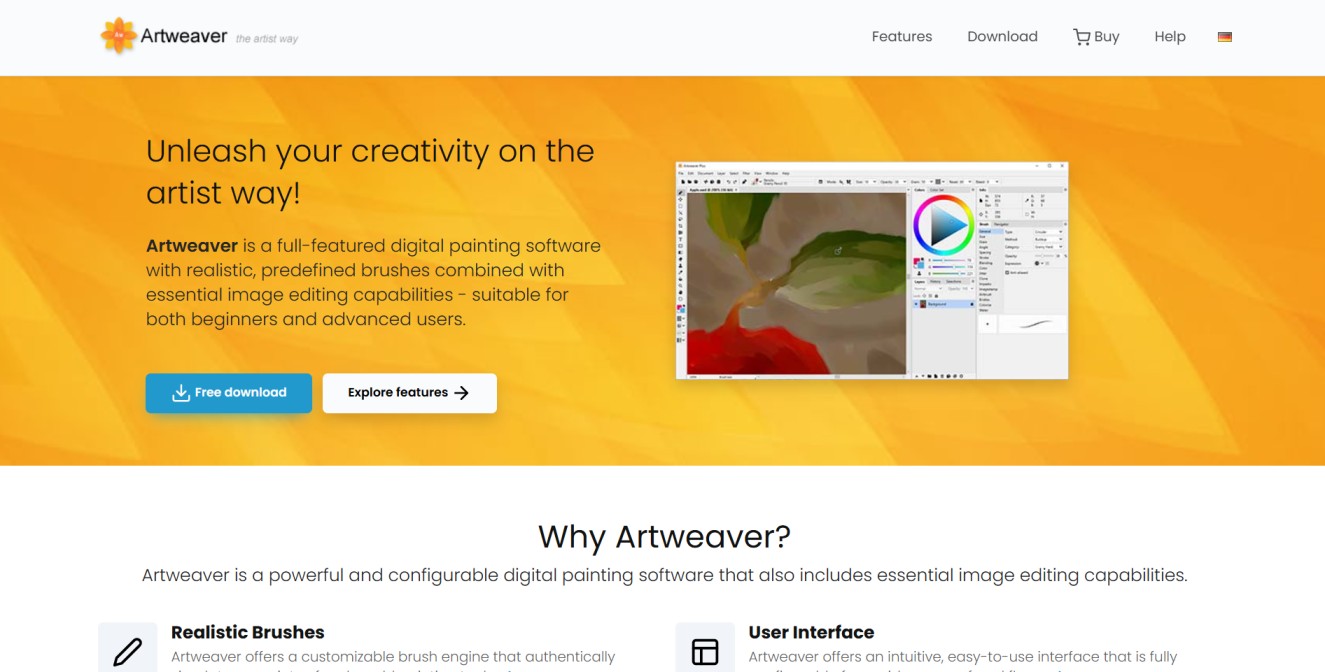
Artweaver brings traditional painting to the digital space with its realistic brushes and easy-to-use interface. Even if you’re a beginner or a pro, this tool makes sketching, painting, and exploring textures effortless. You can enjoy a natural painting experience with customizable brushes and layers. It’s perfect for artists who want a simple yet powerful creative tool. Artweaver lets you experiment freely and bring your artistic ideas to life.
Key Features of Artweaver
- Realistic Brush System: Offers a highly customizable brush engine that simulates natural painting tools, allowing each brush to be individually configured and saved.
- Extensive Brush Library: Includes a wide range of predefined brushes, presets, textures, and image-based stamps for diverse creative styles.
- Multiple Brush Types: Supports various brush types such as airbrush, pixel brush, and textured brushes for flexible drawing and painting workflows.
- Advanced Brush Configuration: Enables detailed control over brush behavior, including size, opacity, spacing, and texture for precise artwork.
- Image-Based Painting Tools: Allows integration of image textures and patterns into brushes, helping create unique and detailed visual effects.
Pros & Cons
Pros
- rn t
- Free version available with affordable upgrade options rn t
- Beginner-friendly interface with scalable learning curve rn t
- Realistic brush engine for natural painting results rn t
- Supports layers, blending modes, and filter effects rn t
- Real-time collaboration for shared creative work
Cons
- rn t
- Fewer advanced features than high-end tools rn t
- Free version has limited tools and capabilities rn t
- Less suitable for complex professional workflows
Best For
- Beginners & Hobby Artists – Ideal for users starting with digital painting thanks to its simple interface and easy learning curve.
- Traditional Artists Moving to Digital – Suitable for painters who want realistic brush behavior and natural media-style textures.
- Collaborative Creators & Teams – Useful for artists working together with real-time collaboration and shared canvas features.
10. Mischief – Infinite Canvas Drawing Software
Mischief is a lightweight drawing software built around an infinite canvas, allowing artists to sketch, zoom, and expand ideas without size limitations. It is especially useful for concept artists, designers, and anyone who prefers a flexible space for brainstorming and freehand drawing. The vector-based rendering ensures that lines remain sharp and smooth at any zoom level.
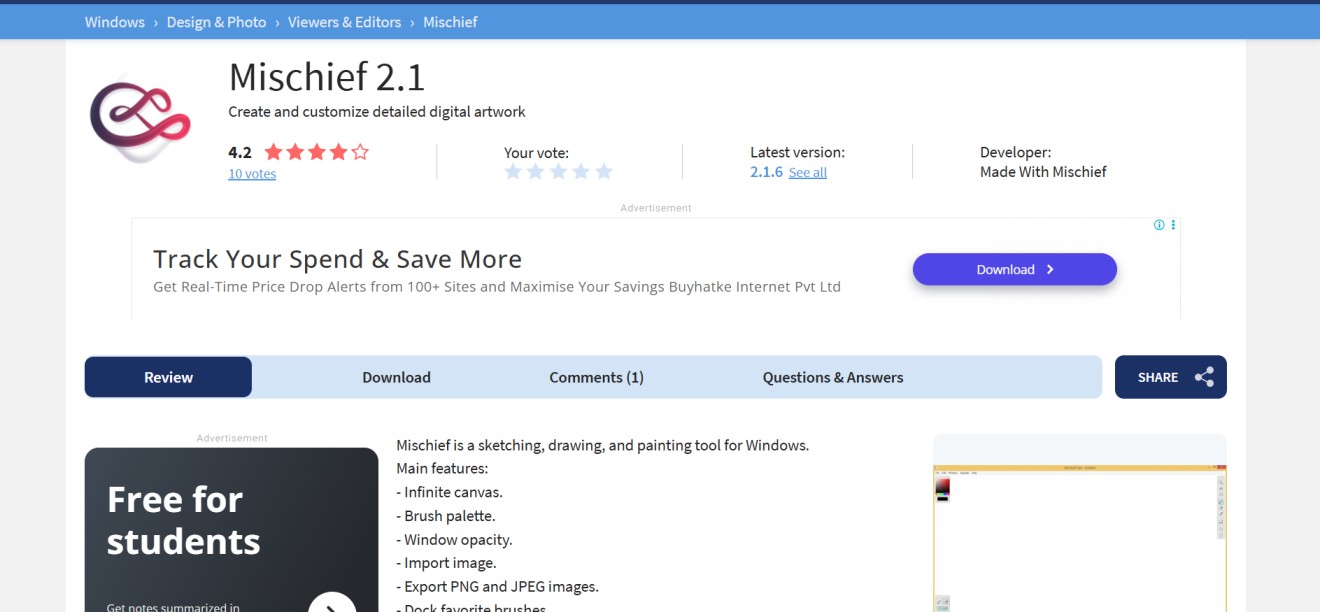
The software focuses on simplicity and performance, offering a clean, distraction-free interface with essential tools for sketching and ideation. Its fast performance, pressure sensitivity support, and scalable strokes make it ideal for quick concepts, storyboarding, and creative exploration rather than detailed painting work.
Key Features of Mischief
- Infinite Canvas Workspace: Provides an unlimited drawing area with smooth zooming, allowing artists to sketch and expand ideas without size restrictions.
- Vector-Based Brush System: Uses scalable strokes that remain sharp at any zoom level, ideal for clean linework and precise illustrations.
- Lightweight & High Performance: Optimized for speed and stability, ensuring smooth drawing even on low to mid-range systems.
- Minimal & Distraction-Free Interface: Clean layout designed to keep focus on drawing without unnecessary tools or clutter.Stylus Pressure Sensitivity: Supports pen pressure input for natural stroke variation and expressive line control.
Pros & Cons
Pros
- rn t
- Unlimited canvas for continuous sketching rn t
- Lightweight and fast on most systems rn t
- Clean, distraction-free interface rn t
- Sharp, scalable vector-based strokes rn t
- Ideal for quick sketches and ideation
Cons
- rn t
- Limited or no advanced layer management rn t
- Not suited for detailed painting workflows rn t
- Basic editing tools compared to full-featured apps
Best For
- Minimalists – Perfect for artists who want a distraction-free digital workspace.
- Storyboard Artists – Great for visualizing ideas and layouts without canvas limitations.
11. Sketchbook – Simple and Clean Drawing Tool
Sketchbook is a lightweight digital drawing app designed for artists who want a smooth and distraction-free sketching experience. It is widely used by designers, illustrators, and beginners because of its clean interface and responsive drawing performance. The software focuses on simplicity while still offering essential tools for both quick sketches and detailed artwork.
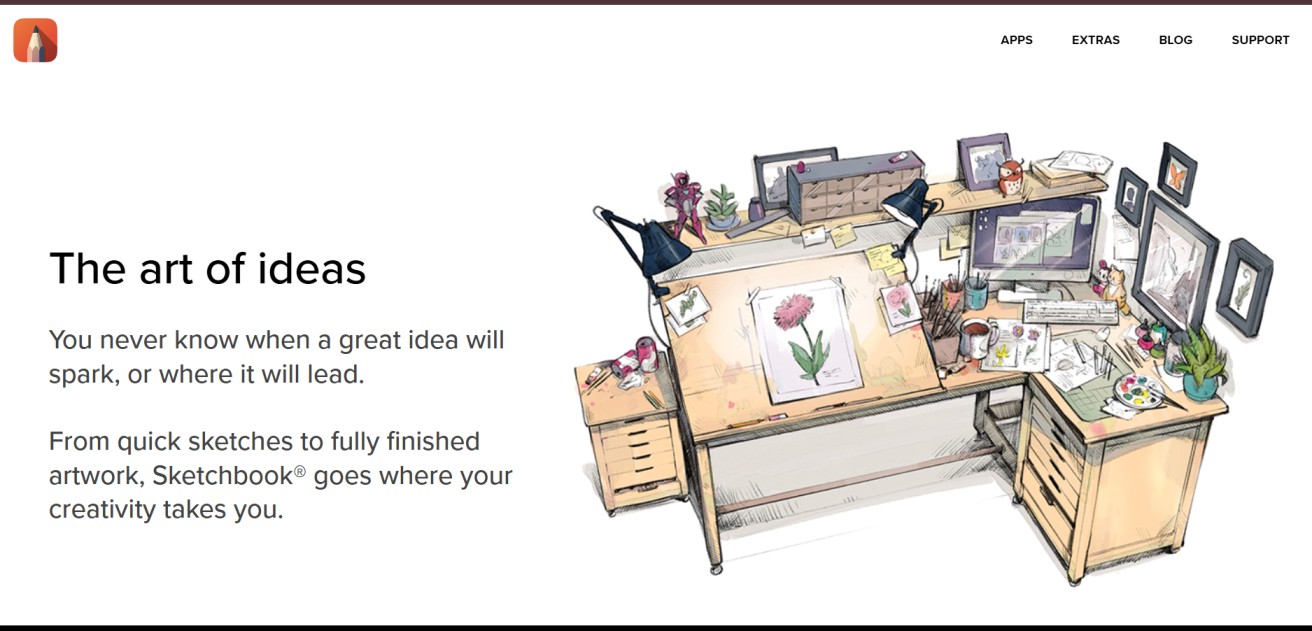
It includes a wide brush library, layer support, and customizable tools that help artists work efficiently without a steep learning curve. With pressure sensitivity, intuitive controls, and support across devices, Sketchbook is a reliable choice for sketching, concept design, and everyday creative work.
Key features of Sketchbook
- Extensive Brush Library – Enjoy a wide variety of brushes that mimic real-life tools like pencils, markers, and airbrushes for precise creativity.
- Layer Management – Organize your artwork with multiple layers, blending modes, and easy editing options to enhance your creative workflow.
- Customizable Interface – Tailor the layout, toolbars, and settings to match your unique drawing style for a smooth experience.
- Time-Lapse Recording – Capture your entire creative process as a video, making it easy to showcase your skills or review techniques.
- Pressure Sensitivity Support – Achieve natural-looking strokes that respond to your pen’s pressure, perfect for shading and detailed illustrations.
Pros & Cons
Pros
- rn t
- Clean, intuitive, and beginner-friendly interface rn t
- Available on both desktop and mobile platforms rn t
- Lightweight with smooth performance rn t
- Supports common file formats for easy sharing rn t
- Affordable pricing with accessible plans
Cons
- rn t
- Limited text and typography tools rn t
- Fewer third-party plugins and extensions rn t
- Not ideal for advanced design workflows
Best For
- Digital Artists & Illustrators – Ideal for detailed artwork with precise brushes, pressure sensitivity, and smooth drawing tools.
- Concept Designers & Creators – Perfect for quick sketches, ideation, and refining concepts with a fast, responsive workflow.
- Beginners Learning Digital Art – Easy-to-use interface with essential tools, making it a great starting point for new artists.
12. Inkscape – Best Free Vector Drawing Software
Inkscape is a free, open-source vector graphics editor designed for creating scalable designs such as logos, icons, illustrations, and web graphics. It is widely used by designers and beginners alike because it works with SVG (Scalable Vector Graphics), ensuring that artwork stays sharp and editable at any size.
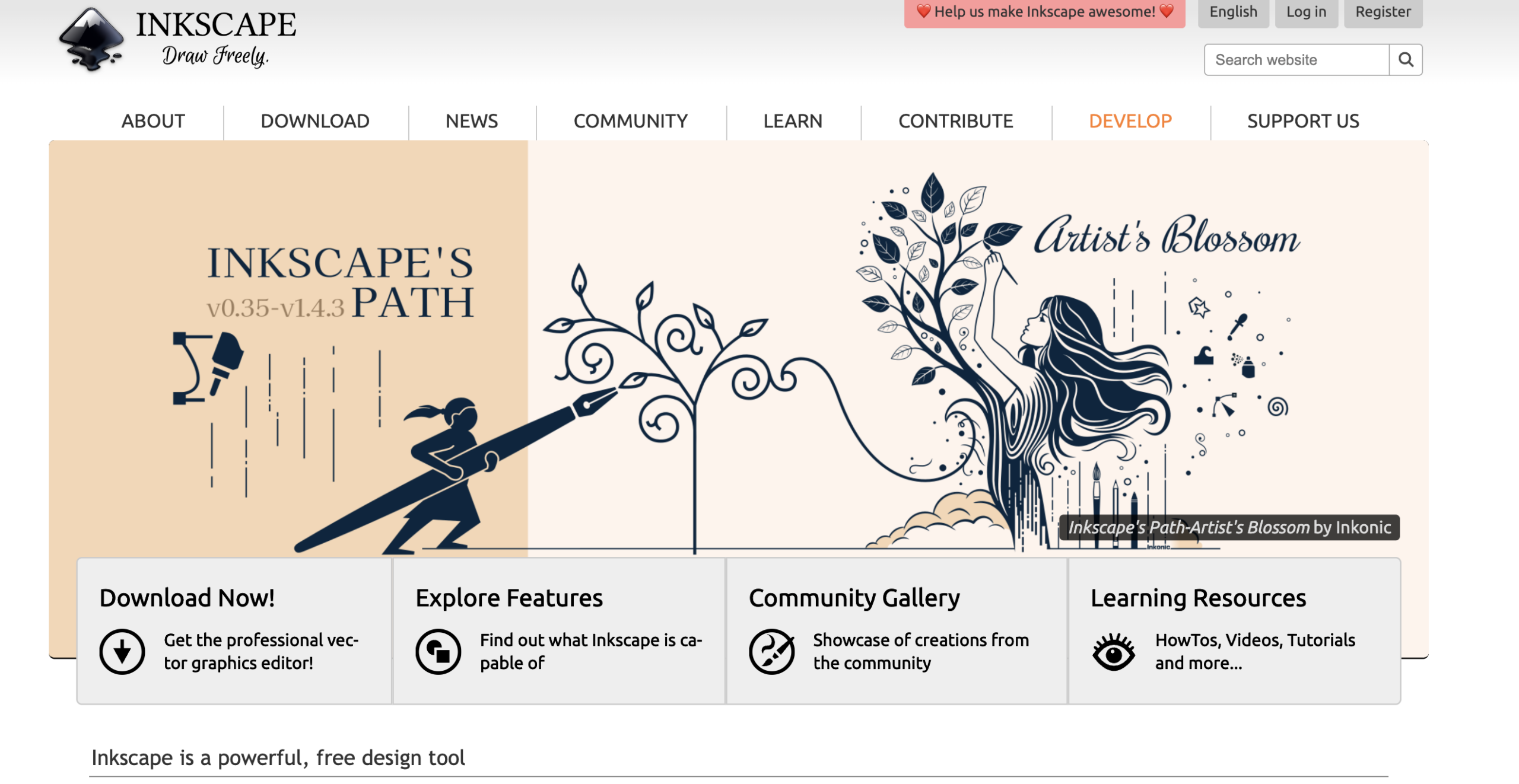
The software focuses on precision and control, making it suitable for both simple designs and complex vector projects.
It offers a complete set of drawing tools, path editing features, and text controls that help users create detailed and professional-quality graphics. With support for layers, gradients, and extensions, Inkscape provides flexibility for different design workflows. Overall, it is a strong alternative to paid vector software for anyone looking to create clean, scalable designs without cost.
Key features of Inkscape
- Flexible Drawing Tools – Inkscape offers a wide range of drawing tools, including freehand, pen, and shape tools. These make it easy to create precise and scalable vector designs.
- Advanced Object Manipulation – Easily move, rotate, scale, and transform objects with Inkscape’s intuitive object control features. Alignments and groupings are also simplified for complex designs.
- SVG File Support – Inkscape’s native SVG format ensures your designs are highly scalable, making it ideal for web graphics and print media.
- Extensive Text Tools – Inkscape’s text engine offers rich formatting options like kerning, line spacing, and text-on-path to create stunning typographic designs.
- Powerful Extension Support – Inkscape supports various extensions for additional effects, import/export options, and automation features to expand its functionality.
Pros and cons
Pros
- rn t
- Powerful vector editing tools for precise design rn t
- Full SVG support for scalable graphics rn t
- Flexible interface with customization options rn t
- Supports layers, paths, and text editing rn t
- Free and open-source with regular updates
Cons
- rn t
- Limited support for raster image editing rn t
- Performance may slow with complex vector files rn t
- Learning curve for new users
Best For
- Graphic Designers – Ideal for logos, icons, and scalable vector graphics with precise path and shape tools.
- Web & UI Designers – Great for creating SVG assets, web visuals, and responsive graphics.
- Students & Hobby Designers – Perfect for learning vector design using a free, open-source platform.
13. Sketchpad – Free Online Drawing Tool
Sketchpad is a browser-based drawing tool designed for quick sketches, simple illustrations, and everyday creative tasks. It runs directly in your web browser, so there’s no need for downloads or setup, making it accessible on different devices. Its lightweight design and fast performance make it ideal for users who want to start drawing instantly.
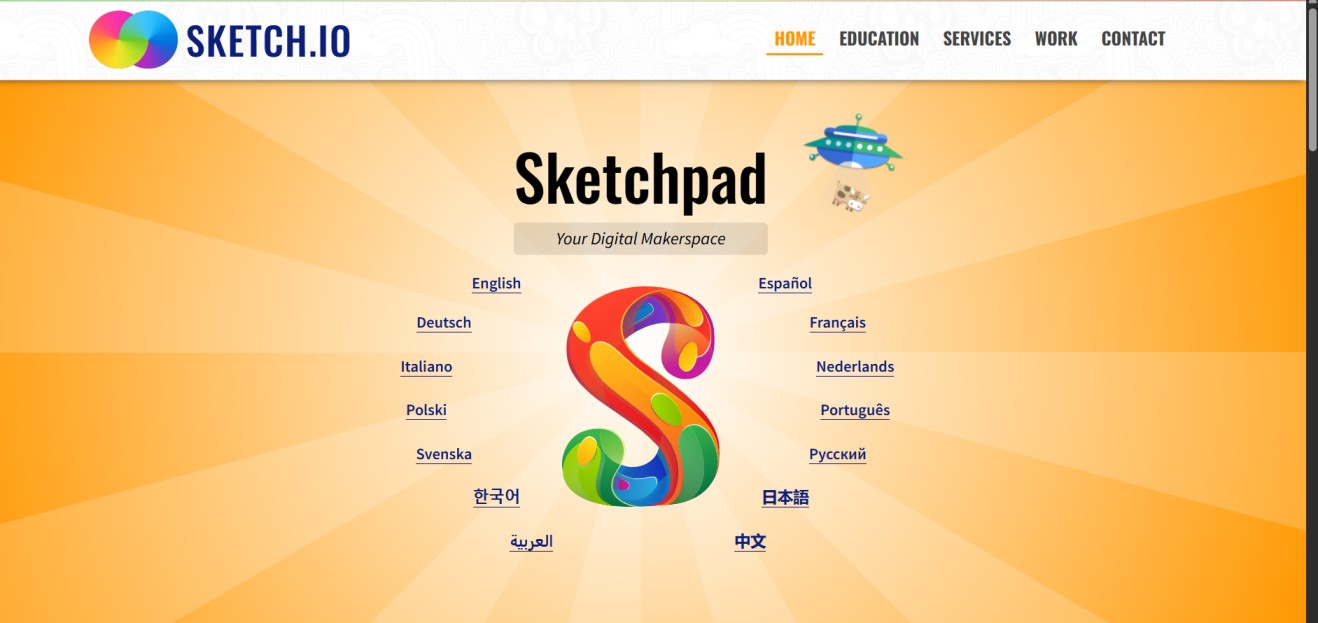
The tool focuses on simplicity and ease of use, offering essential features like brushes, layers, and basic editing options. With its clean interface and straightforward controls, Sketchpad is suitable for beginners, students, and casual users who need a hassle-free way to create and share artwork online.
Key features of sketchpad
- Browser-Based Drawing Tool: Works directly in your web browser with no installation required, allowing instant access from any device.
- Versatile Brush Collection: Includes multiple brush types for sketching, outlining, and textured strokes with basic customization options.
- Layer-Based Editing: Supports layers for organizing elements, making it easier to edit and manage different parts of the artwork.
- Flexible Export Options: Allows exporting designs in common formats for easy sharing and compatibility with other tools.
- Clean and User-Friendly Interface: Simple layout designed for beginners, ensuring a smooth and distraction-free drawing experience.
Pros and Cons
Pros
- rn t
- No installation required (works in browser) rn t
- Simple and beginner-friendly interface rn t
- Quick access for fast sketches and ideas rn t
- Accessible across devices with internet rn t
- Supports basic export formats
Cons
- rn t
- Limited advanced drawing tools rn t
- Not ideal for complex or professional projects rn t
- Basic customization compared to desktop apps
Best For
- Students and Teachers – Perfect for visual learning, diagram creation, and educational illustrations.
- Casual Creatives – Great for hobbyists who want to sketch ideas quickly without complex tools.
- Brainstorming Sessions – Ideal for capturing visual ideas and concepts on the go.
14. MyPaint – Lightweight Digital Painting Software
MyPaint is a lightweight, open-source painting application built for artists who want a fast and distraction-free drawing experience. It is optimized for graphics tablets, offering smooth performance and natural brush response, which makes it suitable for sketching, digital painting, and concept work without heavy system requirements.
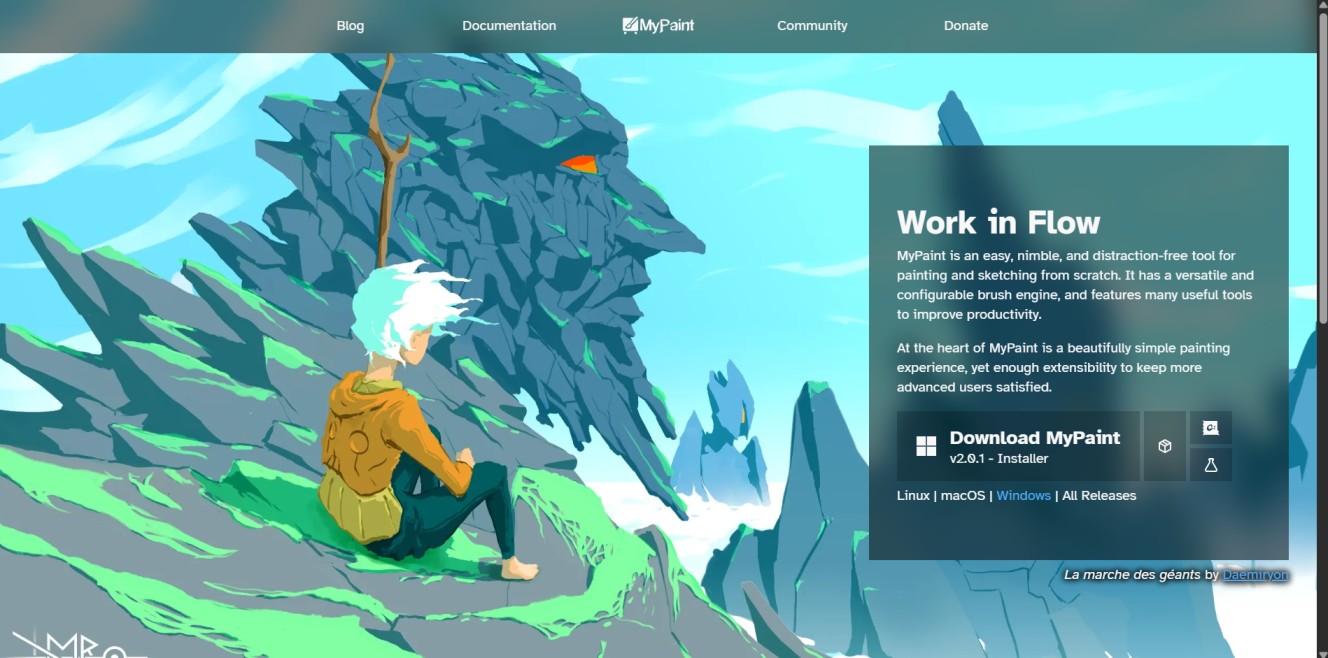
The software focuses on simplicity while still providing a powerful brush engine with extensive customization. Features like an infinite canvas, pressure sensitivity, and a clean, minimal interface help artists stay focused on creativity. Overall, MyPaint is a strong choice for users who prefer a simple yet efficient tool for digital painting.
Key feature of Mypaint
- Minimalist, Distraction-Free Interface: Clean workspace with optional full-screen mode to keep tools hidden and focus on painting.
- Advanced Brush Engine: Highly customizable brushes with control over size, opacity, texture, and dynamics for varied painting styles.
- Infinite Canvas Workspace: Unlimited canvas area for sketching and expanding ideas without size constraints.
- Tablet & Pressure Sensitivity Support: Optimized for graphics tablets with natural pressure response for precise strokes and shading.
- Lightweight & Fast Performance: Designed to run smoothly with minimal system resources for a fluid painting experience.
Pros and Cons
Pros
- rn t
- Fast and responsive on most systems rn t
- Smooth brush performance for detailed painting rn t
- Strong graphics tablet and pressure support rn t
- Lightweight with low resource usage rn t
- Great for traditional-style digital painting
Cons
- rn t
- Limited tools for graphic design workflows rn t
- No vector drawing support rn t
- Fewer advanced editing features
Best For
- Digital Painters – Ideal for natural, brush-focused painting with smooth strokes and realistic feel.
- Illustrators & Sketch Artists – Great for detailed sketches, portraits, and expressive artwork using customizable brushes.
- Minimalist Creators – Perfect for distraction-free workflows with a clean interface and essential tools only.
15. Realistic Paint Studio – Realistic Painting Experience Tool
Realistic Paint Studio is a digital painting app designed to closely replicate traditional art techniques. It focuses on natural brush behavior, textured canvas surfaces, and realistic color interaction, making it suitable for artists who want a more authentic painting feel in a digital environment.
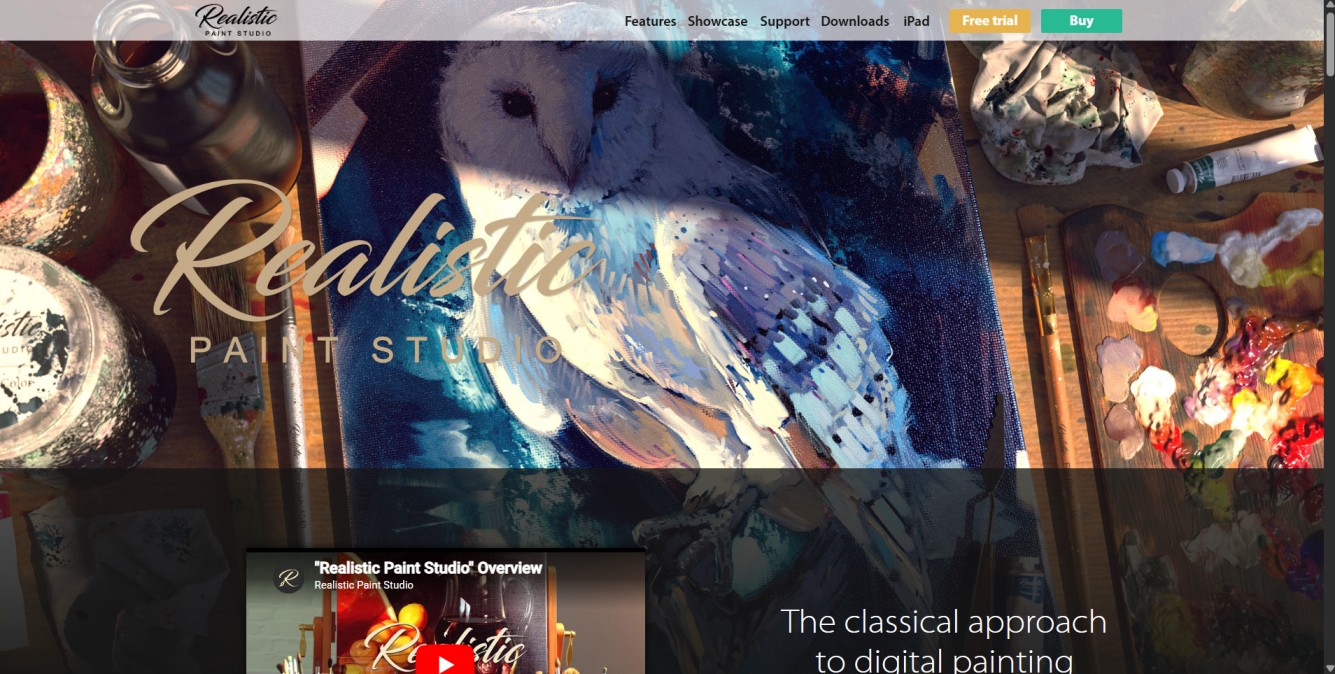
The software emphasizes lifelike strokes and smooth color blending, allowing artists to create expressive artwork with depth and texture. With its intuitive interface and traditional tool simulation, it works well for both beginners and experienced painters looking for a simple yet immersive digital painting experience
Key features Realistic
- Realistic Brush Textures: Simulates traditional tools like brushes, pencils, and pastels with natural stroke behavior and texture response.
- True-to-Life Canvas Effects: Replicates paper and canvas surfaces with visible grain and depth for a more authentic painting feel.
- Natural Color Mixing System: Allows colors to blend on the canvas like real paint, producing smooth transitions and rich tones.
- Clean & Intuitive Workspace: Organized interface designed for easy navigation and a smooth creative workflow.Traditional Tool Simulation: Emulates real-world media such as watercolor, oil, and pastel for a more lifelike digital art experience.
Pros and Cons
Pros
- rn t
- Highly realistic brush and canvas effects rn t
- Strong color blending and smooth shading tools rn t
- Responsive interface for natural painting flow rn t
- Well-suited for fine art and traditional styles rn t
- Great for artists transitioning to digital
Cons
- rn t
- Limited tools for graphic design workflows rn t
- Fewer advanced features than professional suites rn t
- Requires time to learn and master
Best For
- Fine Artists – Perfect for those who want to replicate traditional painting techniques digitally.
- Illustrators – Great for creating expressive and textured artwork.
- Art Students and Hobbyists – Ideal for practicing digital painting skills with realistic tools.
What are the benefits of using free drawing software?
Free drawing software offers plenty of perks, especially for beginners, hobbyists, and even professionals on a budget. Here’s why they’re worth considering:
- Cost-Effective Creativity – Why spend a fortune when you can create stunning designs for free? These tools provide powerful features without the price tag.
- Beginner-Friendly Learning – Most free tools offer simple interfaces, making it easier for newcomers to dive into digital art.
- Wide Variety of Features – From brushes to layers, free drawing apps often pack impressive features for sketching, painting, and designing.
- No Commitment Required – Try different software without risking your wallet. This lets you find the one that fits your style best.
- Strong Community Support – Many free tools have active online communities, offering helpful tips, tutorials, and creative inspiration.
FAQ
What is the best free software for drawing?
It depends on what you’re looking for! If you’re into digital painting, Krita is fantastic. For vector graphics, Inkscape is a top pick. Want something simple for sketching? Try Sketchpad. Each tool shines in its own way, so choose what fits your style best.
Is free drawing software as good as paid software?
Honestly, yes — in many cases! Free tools like Krita, Inkscape, and SketchPad pack powerful features that rival paid options. While premium tools may offer extra perks, free software can still deliver amazing results for most creative projects.
Can beginners use professional-grade tools like Krita or GIMP?
Absolutely! These tools may seem complex at first, but they offer plenty of tutorials and user-friendly features to help beginners get started. Start small, practice regularly, and you’ll pick things up in no time.
Are there free mobile apps for drawing?
For sure! Apps like Corel Painter, Rebelle, and SketchPad are great for drawing on the go. They’re packed with cool features and are perfect for both casual sketchers and serious artists.
Can free drawing software handle complex projects like animation?
Yes! Software like Krita offers powerful animation tools that are perfect for creating detailed motion graphics and frame-by-frame animations. It might take some practice, but free tools are absolutely up to the task.
Which free drawing software is best for graphic design?
Conclusion
So, there you have it! Even if you’re a seasoned artist or just starting out, free drawing software offers incredible tools to bring your creative ideas to life.
From powerful design features to realistic painting effects, these tools prove that you don’t need to spend big to create stunning artwork. Explore different options, experiment with features, and find what suits your style best.
What is the best part? You can do it all without breaking the bank. So why wait? Pick your favorite tool, grab that stylus (or mouse), and start creating your masterpiece today! Happy drawing!
📌 Related: 10 Best Free Payroll Software for Small Business in 2026
