
Order Hosting From Hostinger Step-by-Step Setup Guide
Estimated reading time: 6 minutes, 48 secondsLast updated on July 30th, 2026 at 01:45 pm
You will applaud your decision to click your way to reach this web page as here we are going to acknowledge you with the basics steps to order hosting from Hostinger.
In this article, we will be discussing how a new user can Order Hosting From Hostinger and acquire web hosting services. We will also let our readers know about the amount of time your order takes to activate soon after the payment is made. All this we are going to discuss in great detail.
So without any further delay, let’s get started with a brief introduction about the plans and prices offered by Hostinger.
What is the Hosting Package of Hostinger?
Hostinger offers a wide range of Web Hosting services(Shared, VPS, Dedicated server) to the users according to the needs and performance requirements of their websites at a very affordable rate.
Here are the various hosting plans and pricing policy for the new users to refer to if planning to Order Hosting From Hostinger after going through its positive reviews.
Shared Hosting
Newbie bloggers, students, and Professionals can use the hosting features of shared hosting services to host a website with basic utilities. Going through the tabular format given below can provide a lot of assistance before making the right choice for the right Hosting plan
| Shared Hosting Plans | Websites | DDoS Protection | Storage | Price per Month |
| Single | 1 Website | Standard | 10 GB SSD | ₹69/mo |
| Premium | 3 Websites | Standard | 20 GB SSD | ₹139/mo |
| Unlimited | Unlimited Websites | Enhanced | 50 GB NVMe | ₹199/mo |
| Cloud Startup | Unlimited Websites | Enhanced | 100 GB NVMe | ₹599/mo |
VPS Hosting
Users requiring hosting services for online projects that need power, control, flexibility and WordPress multisites can go for VPS Hosting. Before making a correct choice to choose the Perfect hosting provider among others, users can go through the table once provided as under.
| VPS Hosting Plans | CPU | RAM | NVMe SSD Storage | Bandwidth | Price per Month |
| KVM 1 | 1 vCPU | 4 GB | 50 GB NVMe | 4 TB | ₹599/mo |
| KVM 2 | 2 vCPU | 8 GB | 100 GB NVMe | 8 TB | ₹779/mo |
| KVM 4 | 4 vCPU | 16 GB | 200 GB NVMe | 16 TB | ₹1,099/mo |
| KVM 8 | 8 vCPU | 32 GB | 400 GB NVMe | 32 TB | ₹2,199/mo |
Cloud Hosting
Users having large business websites should go for cloud hosting to fulfill the greater website needs. So before Order Hosting From Hostinger packages, you are advised to have a look at the basic features offered by Hostinger which we have presented in a tabular format.
| Cloud Hosting Plans | Storage | RAM | CPU | Price per Month |
| Cloud Startup | 100 GB NVMe | 4 GB | 4 CPU Cores | ₹599/mo |
| Cloud Professional | 200 GB NVMe | 6 GB | 5 CPU Cores | ₹899/mo |
| Cloud Enterprise | 300 GB NVMe | 12 GB | 6 CPU Cores | ₹1,899/mo |
Minecraft Hosting
Gamers who want to opt for Hosting a Minecraft(a sandbox video game) server can easily order the Minecraft hosting services from Hostinger. Users, new to Hostinger can go through the product details provided in a tabular format before making a choice for the right Minecraft server hosting.
| Minecraft Hosting Plans | RAM | CPU Hardware | DDoS Protection | Price per Month |
| Game Panel 1 | 4 GB | 1 vCPU Core | Anti-DDoS | ₹649/mo |
| Game Panel 2 | 8 GB | 2 vCPU Cores | Anti-DDoS | ₹849/mo |
| Game Panel 4 | 16 GB | 4 vCPU Cores | Anti-DDoS | ₹1,199/mo |
| Game Panel 8 | 32 GB | 8 vCPU Cores | Anti-DDoS | ₹2,399/mo |
Now since you know the plans and prices of various hosting services offered by Hostinger, let’s see the manner in which a new user can order a Shared hosting service from Hostinger.
How to Order Shared Hosting from Hostinger?
To order Shared Hosting Services from Hostinger, users need to adhere to the following guidelines mentioned as under:
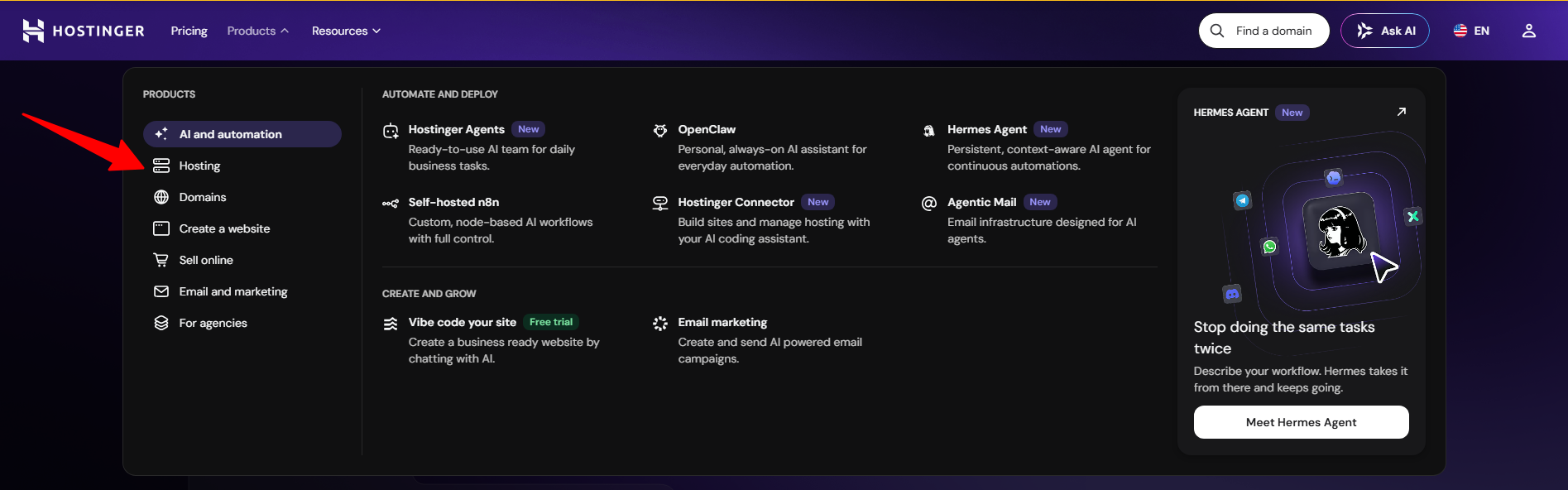
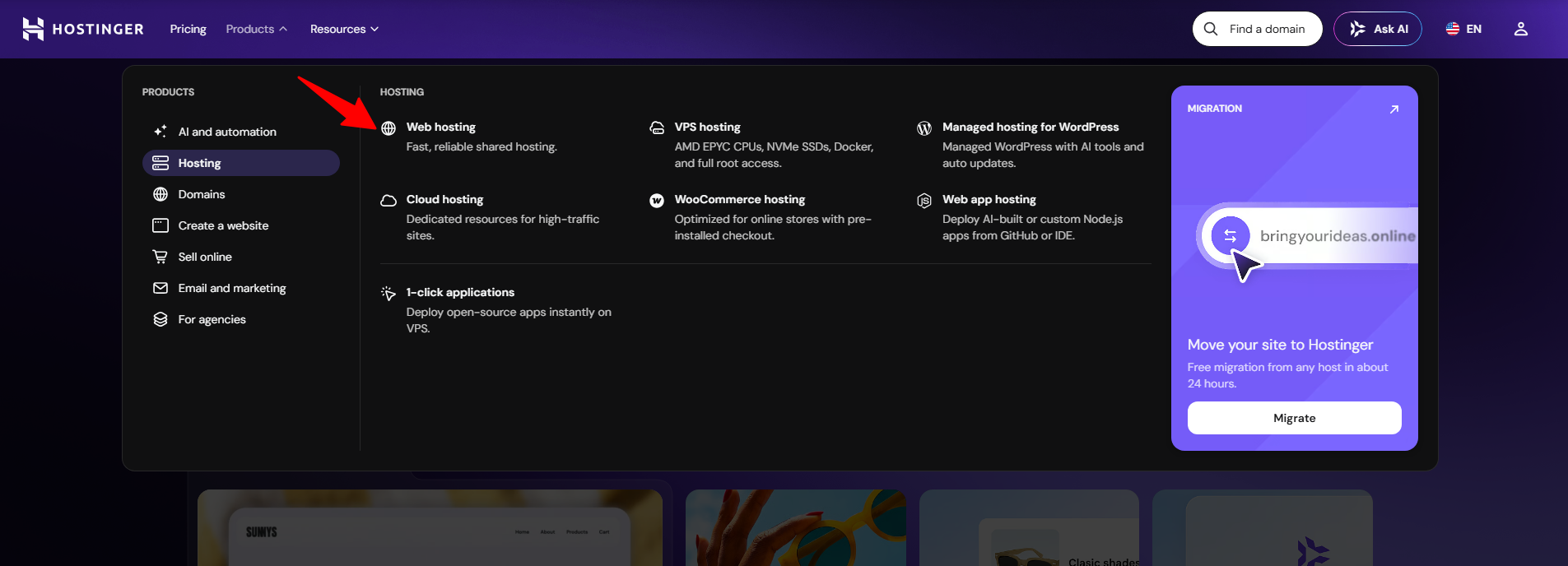
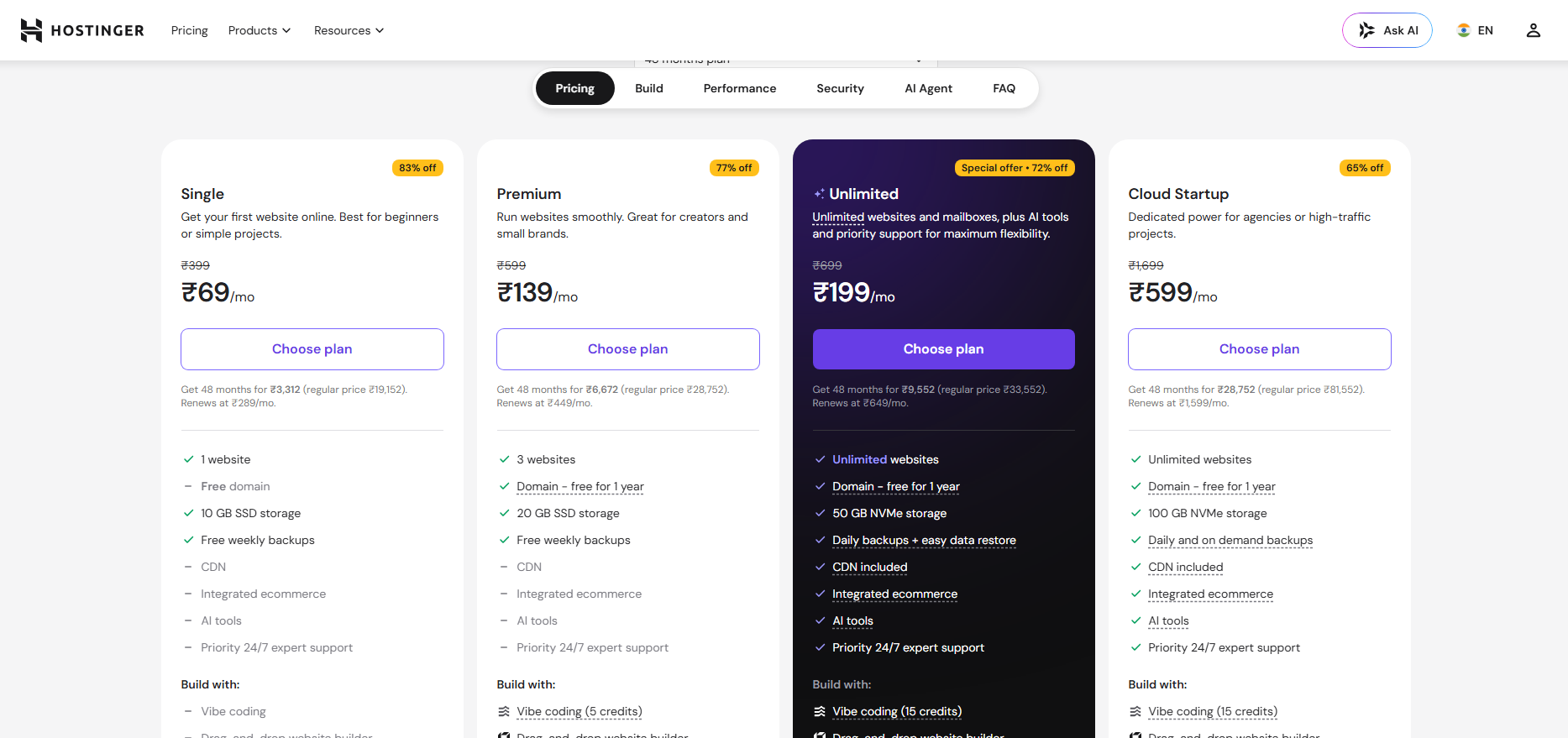
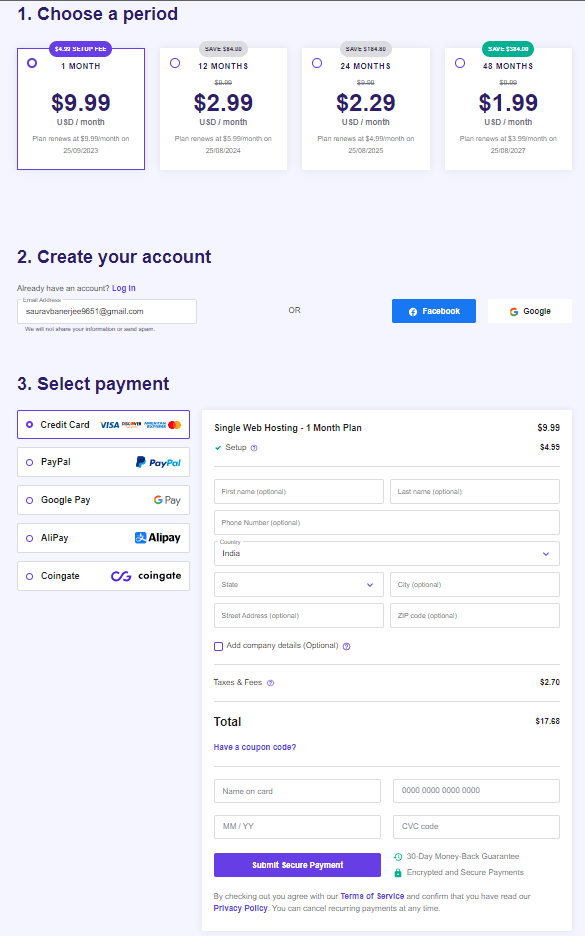
Now, let’s see how users can order VPS hosting services from Hostinger.
How to Order VPS Hosting in Hostinger?
To order VPS hosting packages from Hostinger, You need to adopt the following measures provided as under:
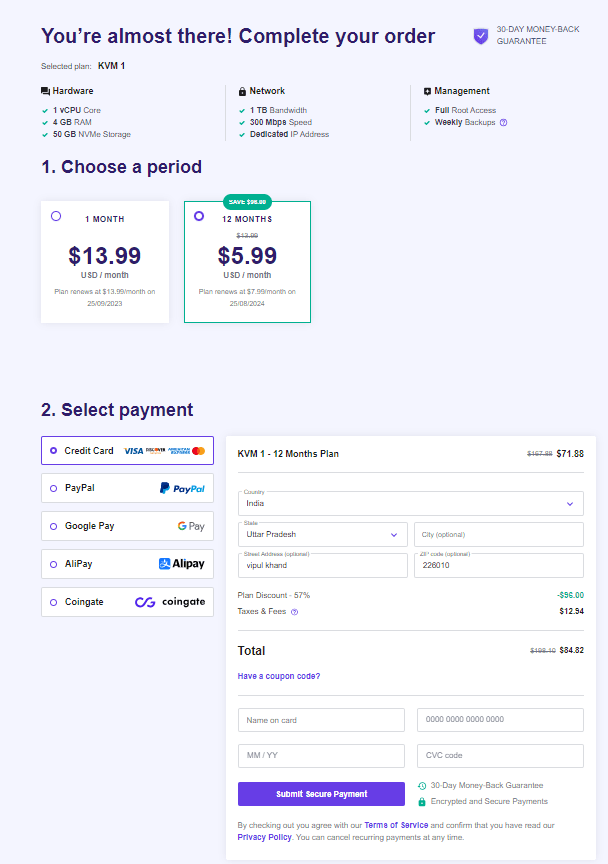
What way can a user order the Cloud hosting services? To know about it, Keep reading further.
How to Order Cloud Hosting in Hostinger?
To order Cloud hosting packages from Hostinger, You need to adopt the following measures provided as under:
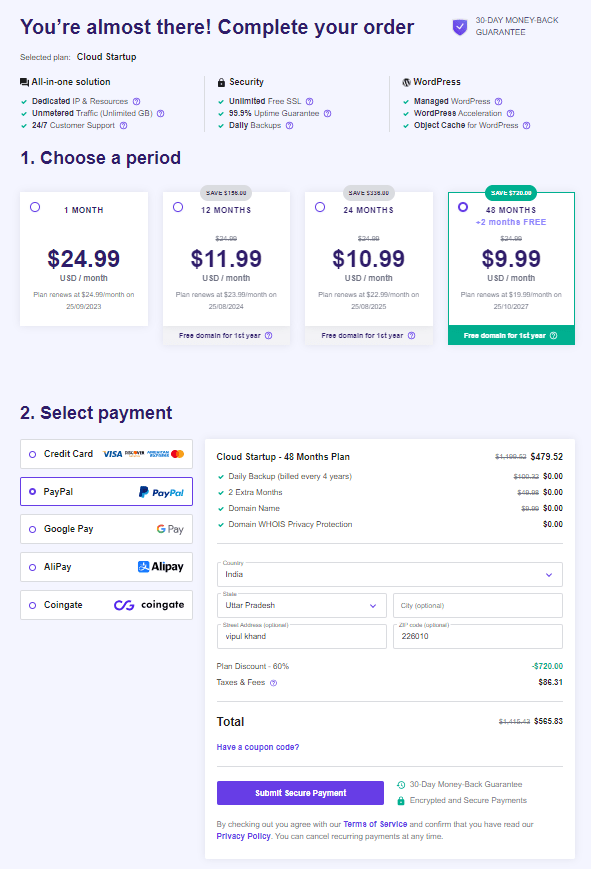
Did you know? That ordering minecraft server hosting is also that easy. To find more, keep reading!
How to Order a Minecraft Server Hosting from Hostinger?
To order VPS hosting packages from Hostinger, You need to adopt the following measures provided as under:
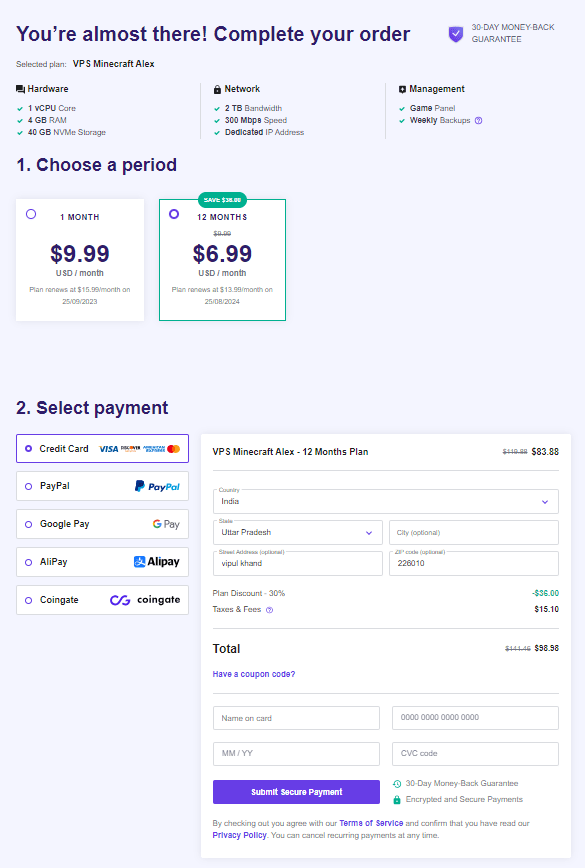
After successful payment for the hosting services, the new users get worried sometimes with the activation period. So, we have made sincere efforts to know the activation period order of Shared, VPS, Cloud and Minecraft server hosting the hosting services offered by Hostinger.
How to check order usage inside my hPanel?
To check the order usage inside hPanel, you should log in to your hPanel account. You can see the statistics bar on the right side.
👉 You can check general metrics details like disk usage, email accounts, inodes, subdomains, automatic responders, etc. Check this link to know more about each detail.
If you can’t check order usage inside hPanel or other services of Hostinger, then you can contact with Hostinger Support Team by live chat or email support.
👉 Also Read: How to Change Hostinger Nameservers
How to order a domain name?
First, visit the homepage of Hostinger and click on the domain in the top right corner.
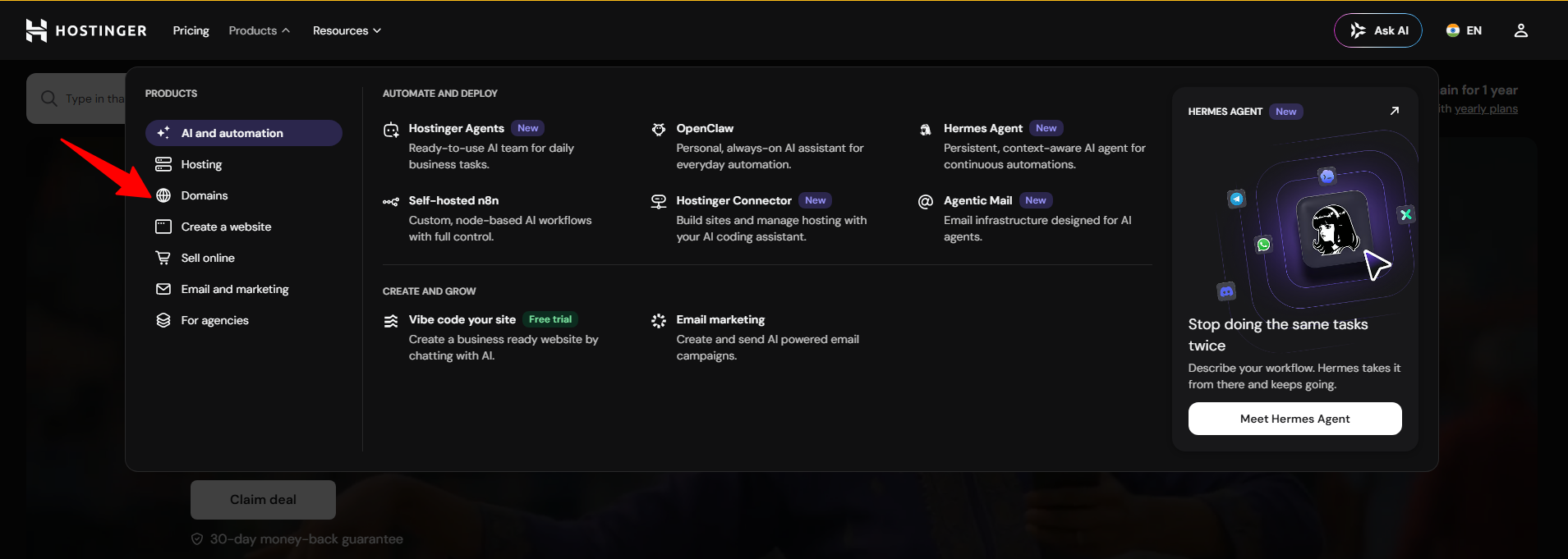
You can click on the link which will let you access the domain search page of Hostinger. In the Domain search area, type the domain name you want to buy.
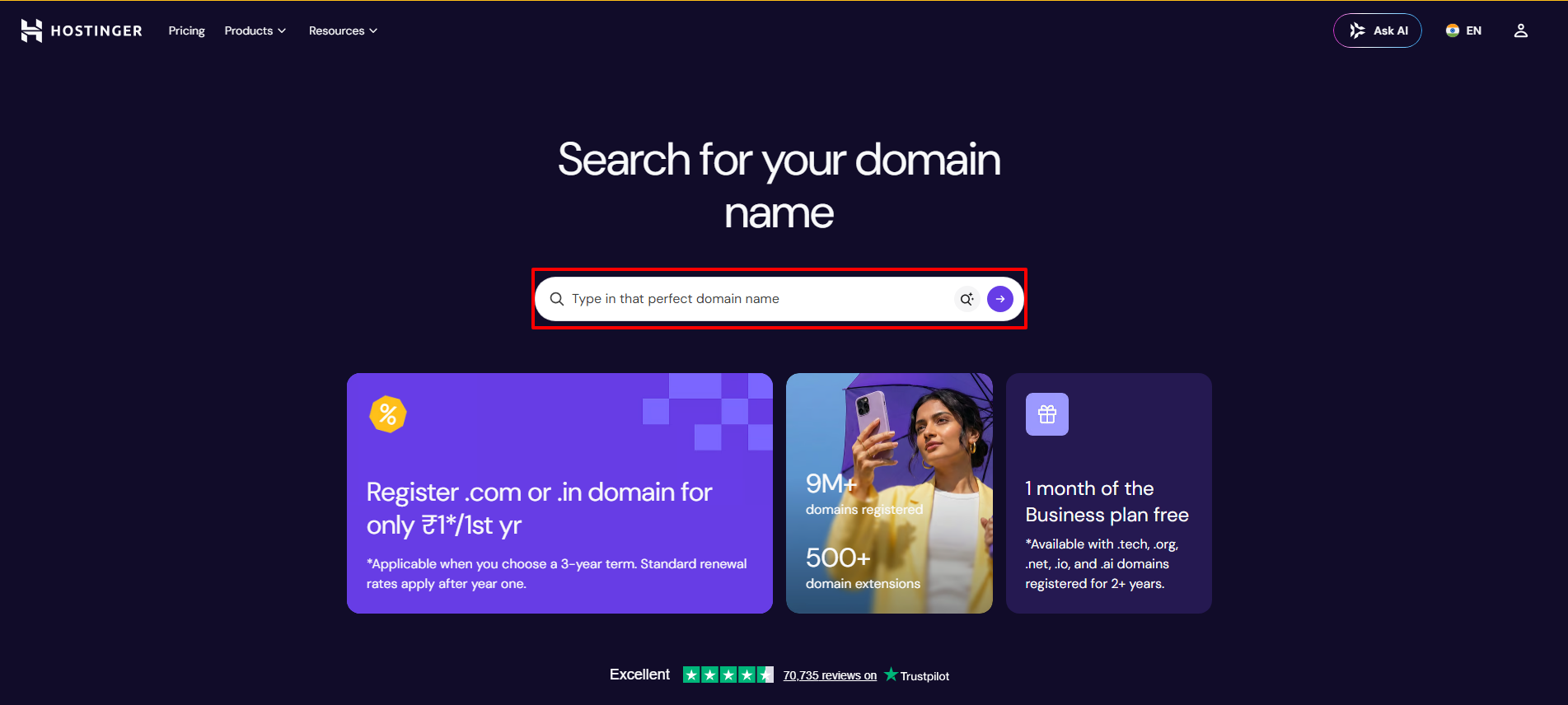
👉 Then click on the Search button. If the domain name is available, you can purchase the domain name through Hostinger.
If Also, you want to know how to log in to Hostinger
How much time does Hostinger take to activate my order?
To get answer for this question we managed to access the Knowledgebase Page of Hostinger where we got to know the following:
FAQ
How do i buy a web hosting server?
Anybody can buy a web hosting server from Hostinger. Click on this link and select the hosting option from a variety of hosting plans. Then choose the package that meets your requirements and click on Add to Cart to purchase. Make the payment and complete the order.
How to set up my orders at Hostinger?
After your purchase from Hostinger, you will see your order in the dashboard. Go to the home section in your Client Portal and click on the Setup button given against your order. Then you must add all the information required, and your order will be activated.
Which Domain is Best?
You can choose any domain you like. But your domain name is short, easy to read and spell. Moreover, always keep your domain name unique and avoid double letters and hyphens. Keep .com as the first preference.
How to Check Order Usage For My VPS?
In order to check order usage for your VPS, you must log in to your account and click on the Servers tab. Then Select the Statistics option. Then you can select which period you like to analyse, like the last 24 hours or the last 1 week. After selecting the period you will see six graphics with the main metric based on your plan. You can find CPU usage, disk usage, bandwidth packets, and more.
How Do I Buy a Web Hosting Server?
Conclusion
Through this article, we have successfully been able to assist users who are new to Hostinger an effortless way to order various hosting services from Hostinger. Not only that, we’ve also tabulated the services with its basic features and prices to let users get a brief idea about the hosting services offered by Hostinger.
Those users who had trouble knowing the activation period of their order placed are also been addressed well in this article.
Lastly, we believe that this article was incredibly helpful to you. So we urge you to post your comments to make us understand how valuable this article has been to you.
Related Post:
📌 Related: Nexcess is now officially part of Liquid Web (Nexcess Nameservers)
📌 Related: Nexcess is now officially part of Liquid Web (Nexcess Login)
