
Kamatera Login Access Your Webmail cPanel Account Now
Estimated reading time: 4 minutes, 9 secondsLast updated on August 8th, 2026 at 10:37 am
Kamatera is a web hosting provider that provides high-grade cloud infrastructure products for all businesses and organizations.
Yohay Azulay (Joint Chief Executive Officer) is the founder of Kamatera, which was established in the year 1995. Since then, Kamatera has been part of an International IT-based service provider. They have the most advanced technologies and a high level of customer service.
Kamatera is a leading web hosting provider worldwide because it operates 18 global data centres with thousands of servers worldwide, capable of serving millions of clients worldwide, including start-ups, application developers, international enterprises, and SaaS providers.
Kamatera login guide: Here, you will get the login guide for Kamatera and the method to retrieve the password if you lose it.
So, let’s get started.
How to Log in to Kamatera?
Logging into Kamatera is very easy. Follow the steps given below and log in to the client area of Kamatera.
Step 1: Once you have signed up for Kamatera, you must remember the email id and password, as they will play a crucial role in the login procedure of Kamatera.
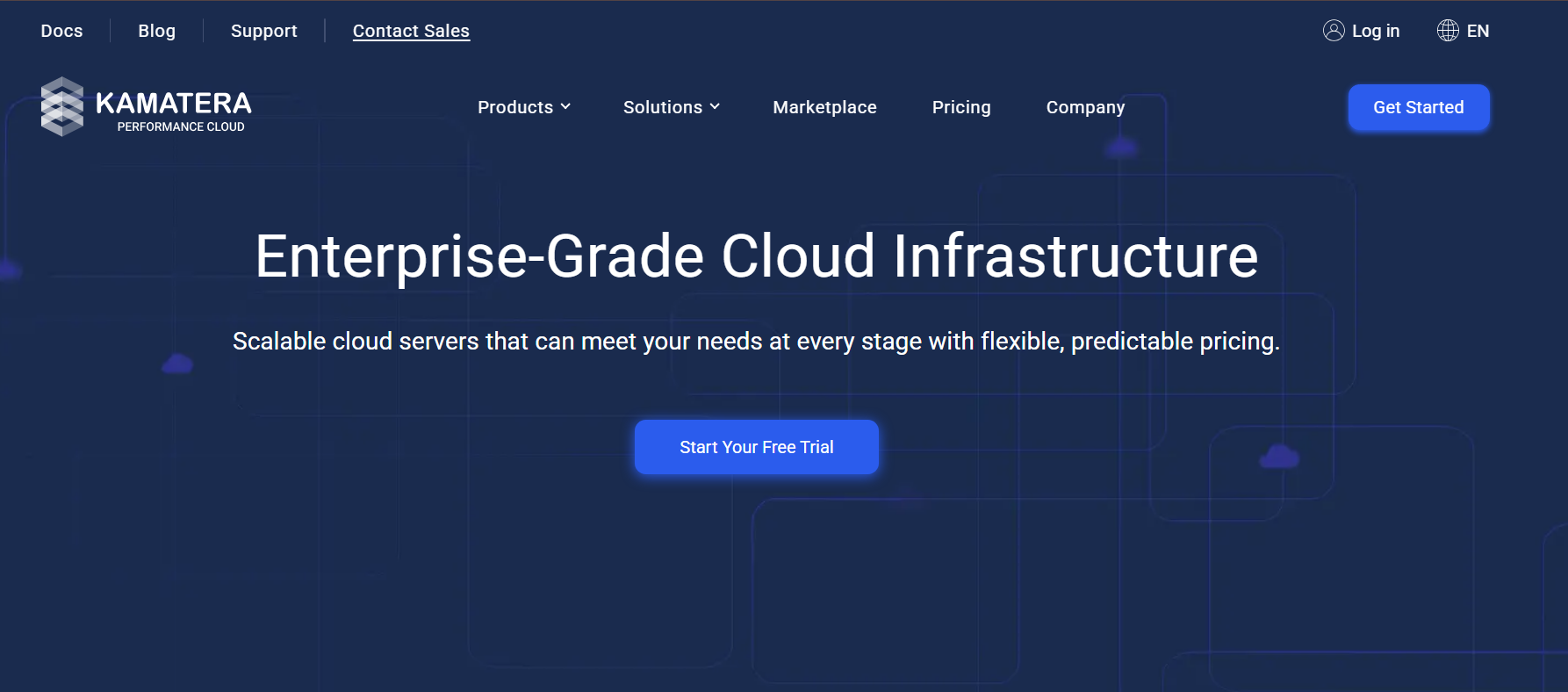
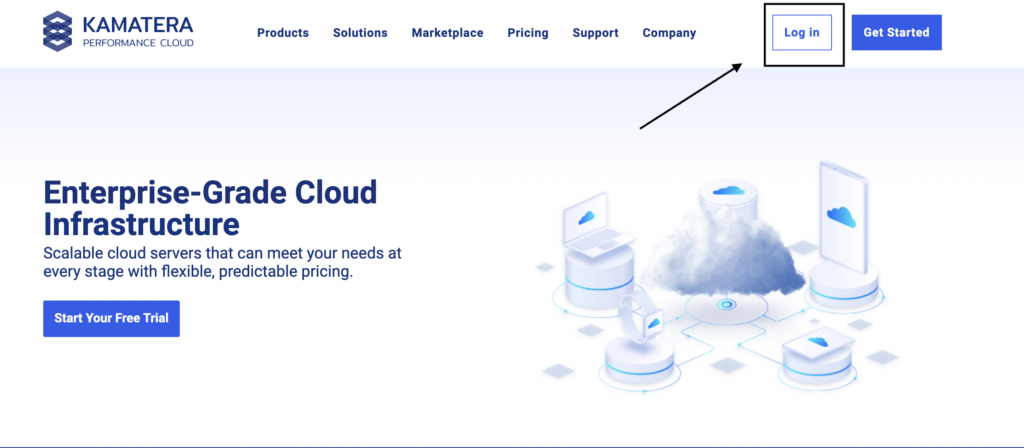
Step 2: Go to the official website of Kamatera. That is www.kamatera.com. You will find an interface that is similar to the following page.
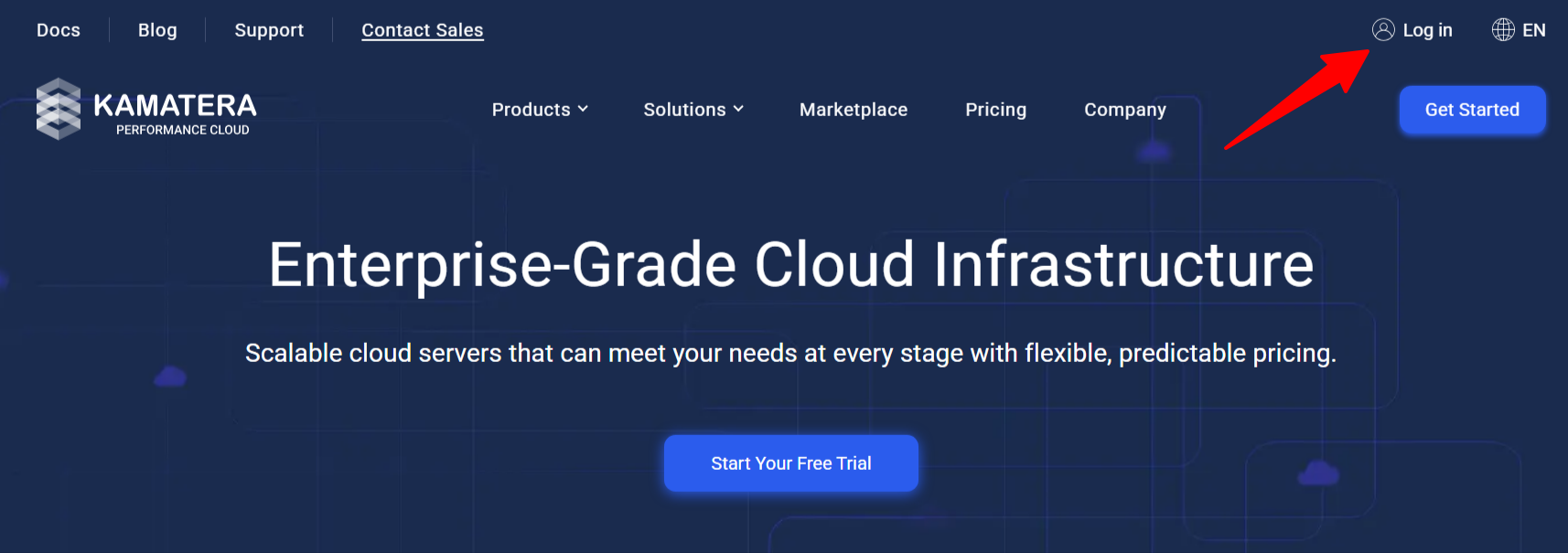
Step 3: You will find the login button in the top right corner. You have to click on that login button. A new interface will come in front of you, which will look similar to the following image.
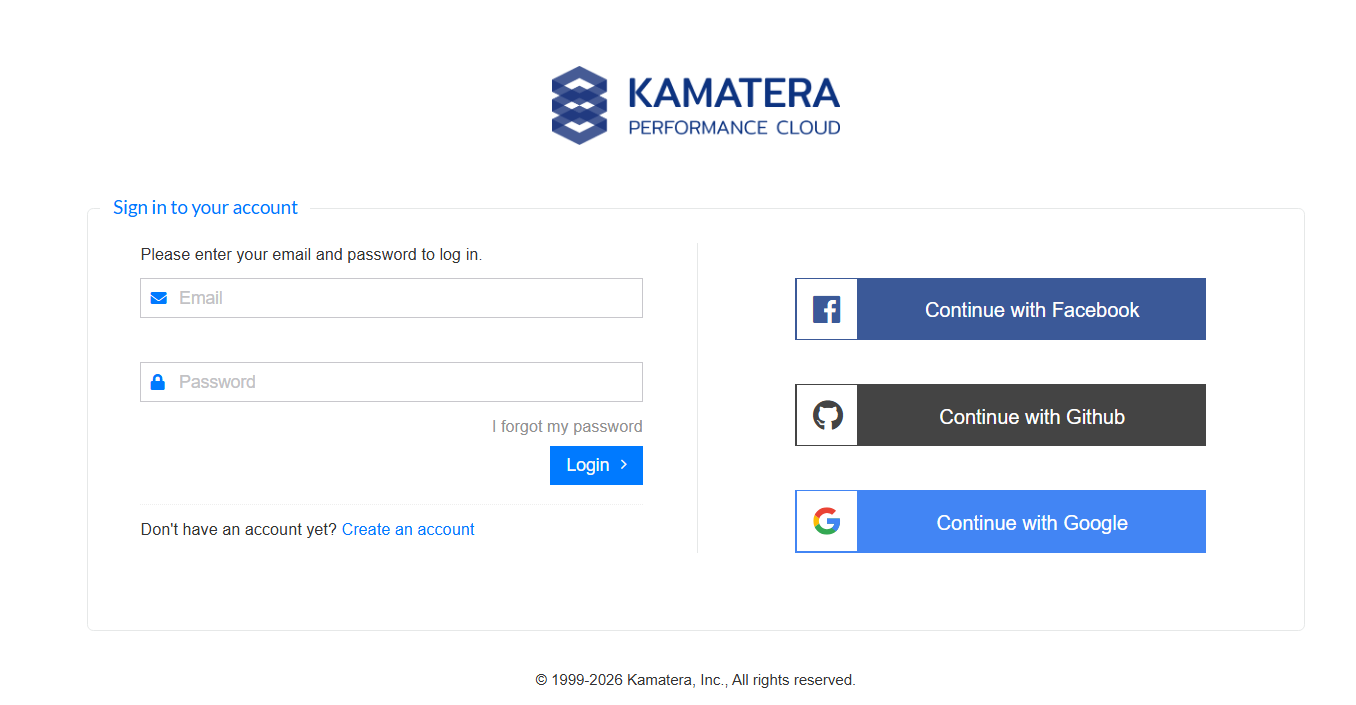
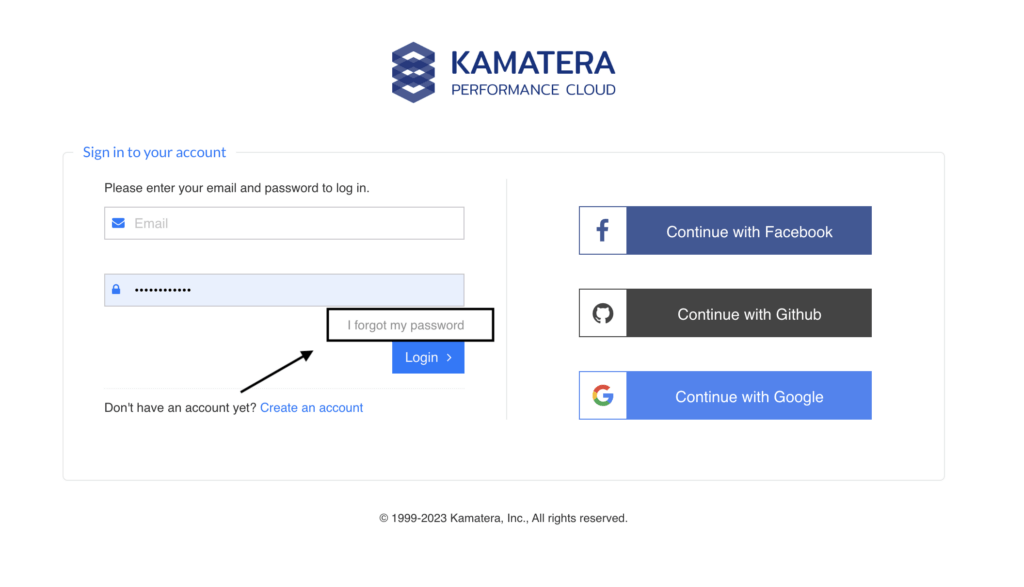
Step 4: You will have to enter the same email address that you used and the password that you used while signing up with Kamatera. Once you do that, you must click the login button. And you will reach the login dashboard.
There are times we forget our password, which is very natural as all of us are human beings, and we can make such mistakes. But you need not worry at all. Kamatera provides you with an option of Resetting your password.
How to sign up for Kamatera?
As you all know, before you can initiate a successful login process, creating an account with Kamatera is the first step you need to cover.
Keep scrolling further to familiarize yourself with the sign-up procedure explained in the simplest way as under:
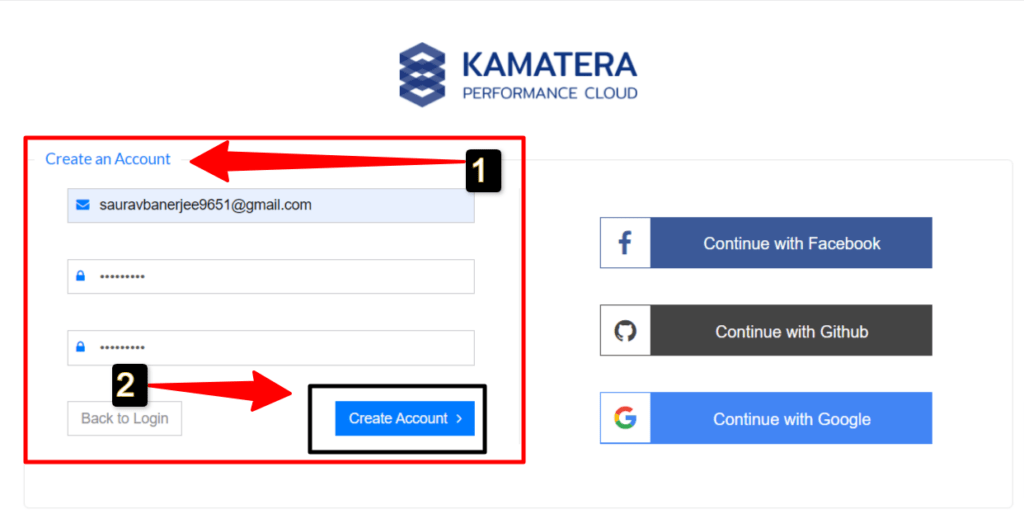
Step 1. Go to the Kamatera login page > Press the Create an Account option to proceed further with the sign-up process.
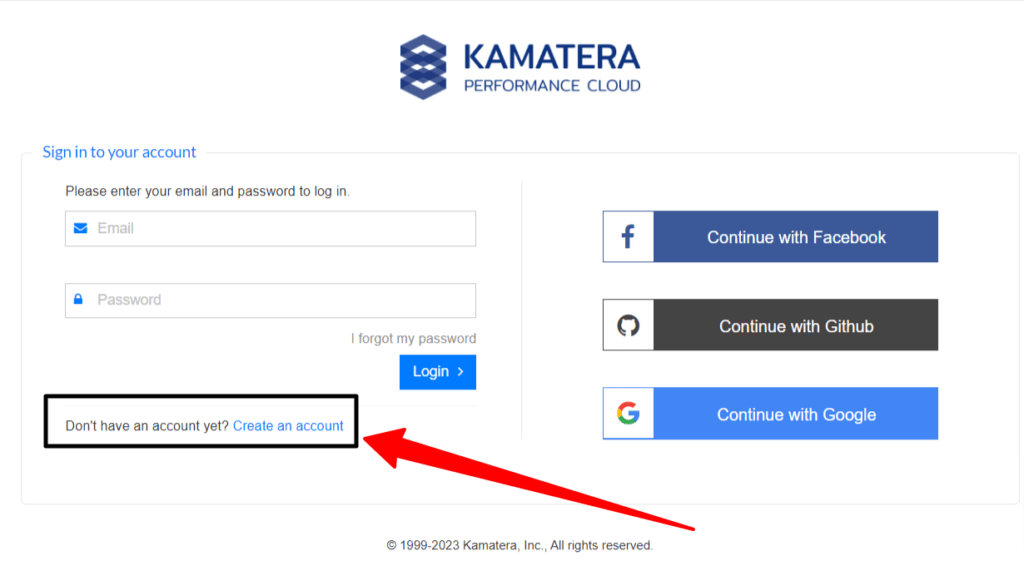
Step 2. On clicking the Create an account option > 1) you’ll be required to enter your valid Email Id and generate a strong password > 2) confirm the same > 3) then press the Create an account option to initiate the sign-up process.
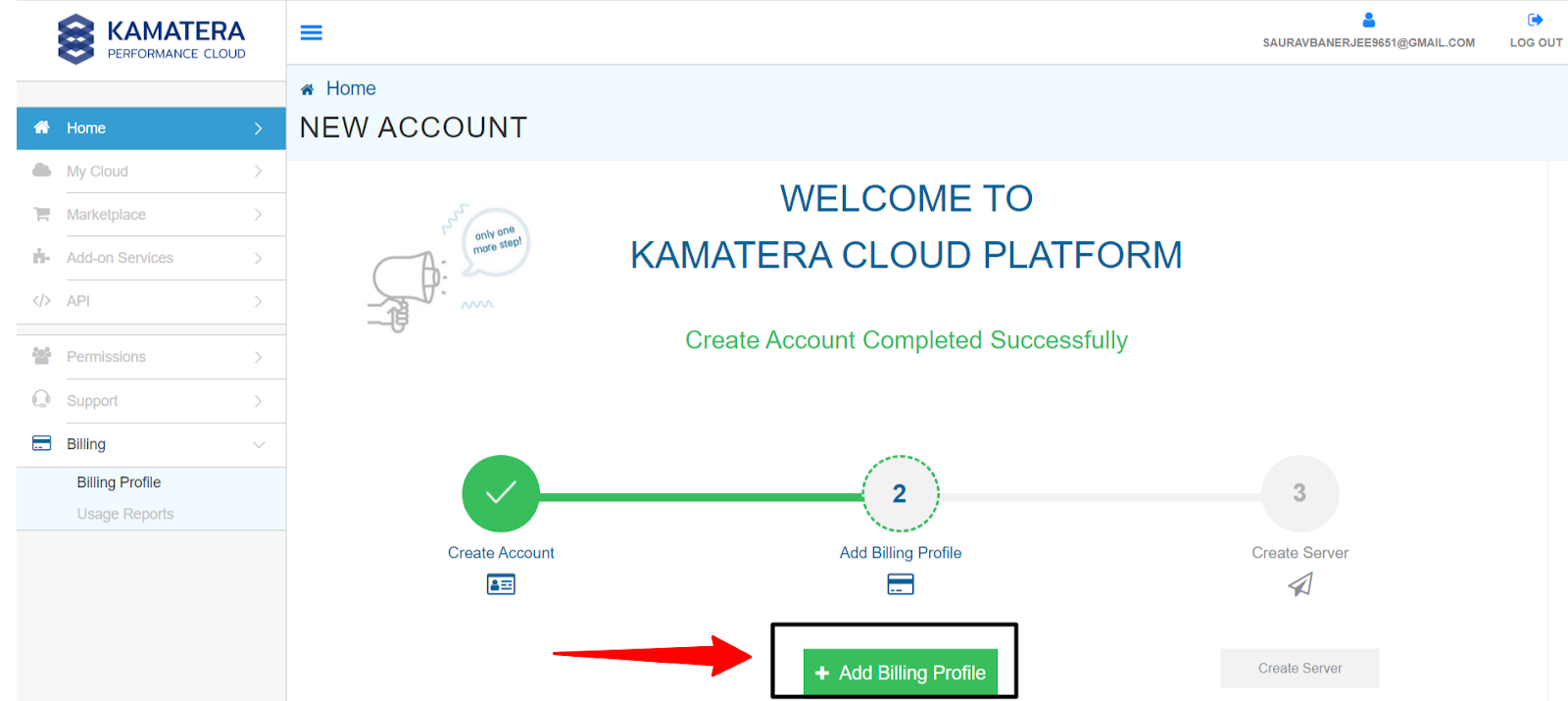
Step 3. On pressing the Create Account tab, you’ll reach your Kamatera Portal > Use your portal to Add your Billing Address and your billing details as well > Press the Add Billing Profile to carry on with the registration process for Free trials.
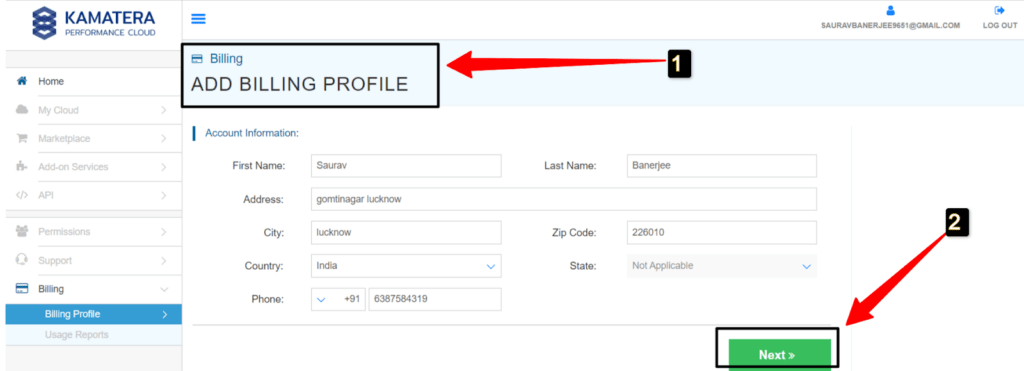
Step 4. On pressing the billing profile option > 1) enter your relevant billing details > 2) Press the next option.
Step 5. After doing so, > 1) Enter your card details under ADD BILLING PROFILE and use the Promo code to avail hot deals on Kamatera products > Press finish to finally finish the signing-up process with Kamatera fully.
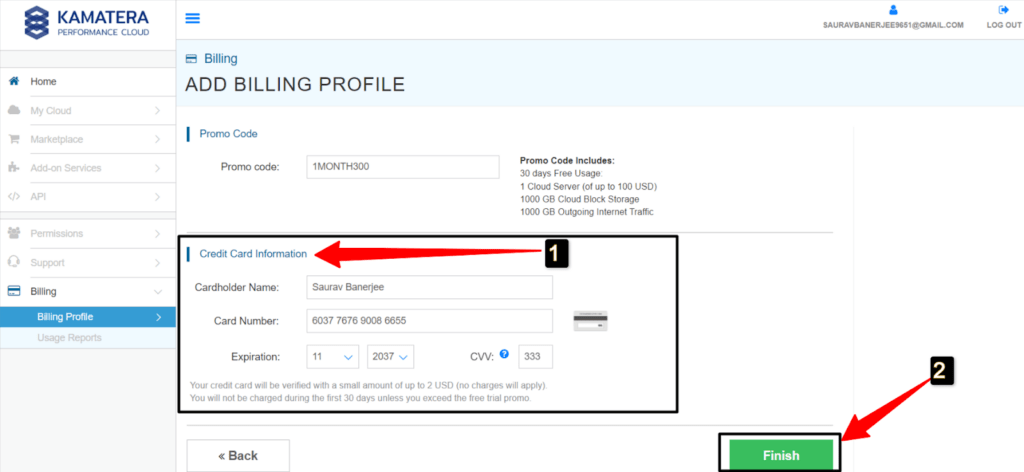
So we see how simple it is to not only join up by making an account with KAMATERA, but also to process billing information prior to placing an order to create a server.
Now, what if you wish to update your password to retain great security by preventing unauthorised access to your account? Or did you, by chance, misplace your password? Continue reading to learn how to reset or recover your Kamatera account password.
How to Reset Kamatera Login Password?
To reset your password for Kamatera, follow the steps given below.
Step 1: Go to the official website of Kamatera, i.e., www.kamatera.com
Step 2: In the top right corner, you will find the login button; click on that.
Step 3: Now, when you have forgotten your password, you will have an option “Forget your Password? Click here”.
Step 4: Once you click on that, they will send a restore link to your email ID.
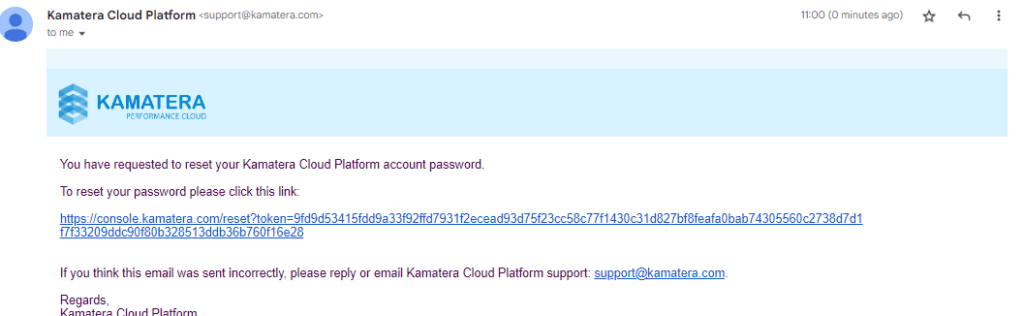
Step 5: Click on the link they will send to your email id. A new interface will be open in front of you.
Step 7: Here, you have to write the new password, confirm that, and press the Reset Password Button.
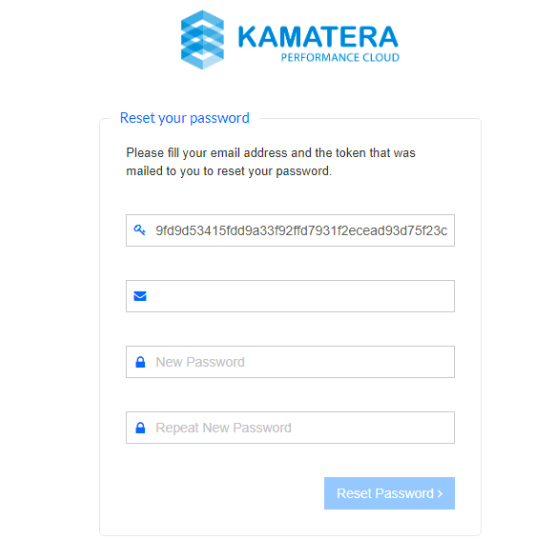
Your new password will be successfully updated. You can now use your new password and log in to Kamatera.
FAQ
Does Kamatera provide managed services?
Yes, Kamatera provides a Manages Cloud Service, which benefits the system owners through cloud administrators responsible for managing and monitoring their servers.
How to open a support ticket for Login issues?
If you face any problem in login in, you can contact their customer support team for help. You can mail your problem to support@kamatera.com, and their support will help you as soon as possible.rn Kamatera support team is available 24/7 to help you with all your queries. You will get an instant response to all your doubts.
How do I sign up for order kamatera hosting If I don’t have an account on Kamatera?
To signup with Kamatera, you have to log in to the official website of Kamatera. Then in the top right corner, you will find the signup button. Click on that. They will be asking for your email id and password.rn Then they will send a verification code to your email id. Use that code and verify your email address. Next, you have to enter your bank details. Once you verify your bank account, you can easily create a server for yourself.
Conclusion
We hope this guide will help you clear all your doubts regarding the login of Kamatera. We have covered the login guide, as well as a guide for resetting your password.
Hopefully, you will now be able to log in to Kamatera, and this guide will help you to clear all your doubts regarding the login procedure of Kamatera. If you still have any problems, you can drop a message in the comment section below.
Thank you!
📌 Related: HostMonster NameServers
📌 Related: SmarterASP NameServers
