
BanaHosting Nameservers: Point Your Domain Step-by-Step
Estimated reading time: 3 minutes, 48 secondsLast updated on July 31st, 2026 at 02:45 pm
People who want to host their website always look for a reliable web hosting service provider, as web hosting is very important in business. To make your website live online, you need to host it.
BanaHosting is a company that offers various services and products related to website creation and hosting.
What is BanaHosting Private Nameserver?
BanaHosting Nameservers are those nameservers that the client creates. These nameservers are not associated with the domain registrar. For example, if you have created private nameservers for your domain in BanaHosting, the nameservers will look like ns1.yourdomain.com.
This means that private nameservers will include the name of your domain and offer a personalized feel. BanaHosting Nameservers will look like ns1.banahosting.com.
How Do I Choose Nameservers?
Nameservers must be created when a domain is registered. The nameservers connect the URLs with the IP addresses when you search the domain in the web browser.
If you have bought a domain from BanaHosting, you can use the default nameservers or create custom ones depending on your requirements. Default nameservers are those created by the registrar, and the client should create the private ones.
How Do I Find My cPanel Nameserver?
You can find the nameservers of your domain in three ways. When a domain is registered, you will receive a welcome email from Bana Hosting containing all the required information regarding the registered domain and its nameservers.
You can check your nameservers in your welcome email, or you can check your nameservers under the Domains section by logging into your Client Area of BanaHosting. The third way is to find your BanaHosting Nameservers using cPanel. Follow the steps given below.
- Log in to the cPanel account. You can also launch cPanel through the client portal of Bana Hosting.
- Now click on Server Information, which can be found under the General Information section
- A new page will display an overview of your domain and nameservers.
How Do I Find My DNS Records in cPanel?
- Log in to the cPanel account
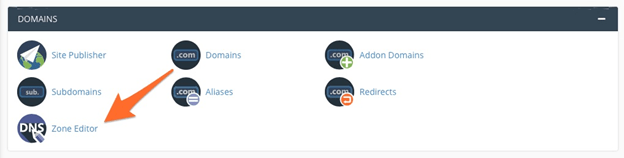
- Click on Zone Editor under the Domain section
- Select the domain name to see the DNS records
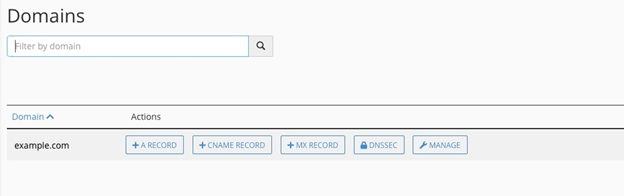
- Click on the Manage button, which will give you the details regarding the DNS records of that particular domain
How to Check DNS Server and Mail?
To check your domain’s DNS server, you can find it through your client account of BanaHosting Nameservers. You can also check it through the WHM panel.
- Use the WHM username and password to log in
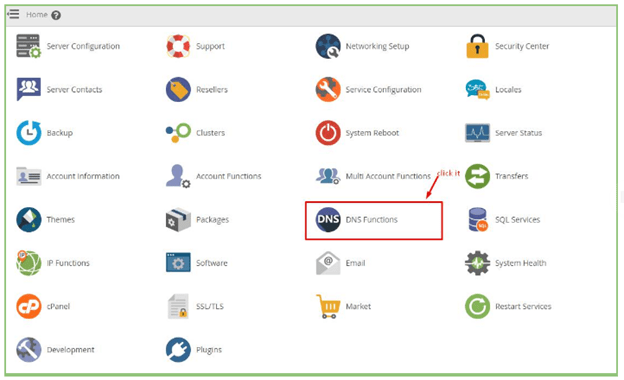
- Click on the DNS Function
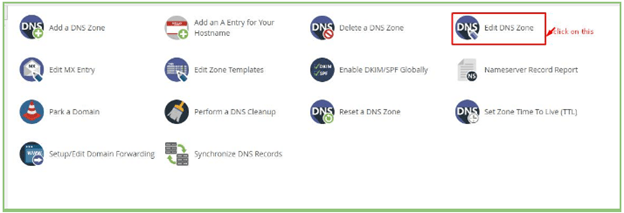
- Select Edit DNS Zone
- Select the domain name for which you want to find the nameserver
- Click on the Edit button
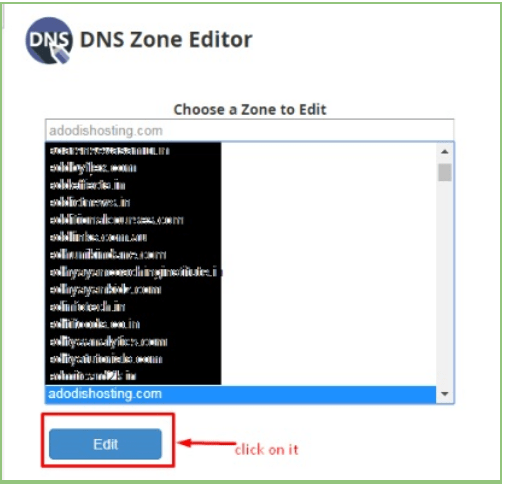
- You can check the nameservers here
👉 Steps to check Webmail BanaHosting
- Log in to the WHM account first
- Select the Mail Log option. The complete Mail Log details will be shown on the screen
- Then you will be given information like a day traffic summary. Message reject details and several more.
How to Configure DNS Nameservers with cPanel?
The first step is to visit the cPanel client account. Then follow the steps given here to access the DNS records and make changes by editing or arranging the records of your domain.
- Select the Zone Editor option, which can be seen on the dashboard.
- Now you can see the DNS records, which are A record, CNAME, TXT, MX, and more
- You can edit these records here easily by choosing one record from the drop-down menu
- Then you can add the hostname, IP address, etc, in the fields given to update the changes
- Click on the Update button after making the changes to save it
How to Configure Custom Nameservers in cPanel?
Custom nameservers are those nameservers created by the client to personalize the domain name. Using custom nameservers means you have control of your domain, and it becomes easy to change the server as you don’t have to change the configuration.
- Log in to your WHM account and click on Basic WebHost Manager.
- Enter two domain names in the fields provided at the bottom of the page
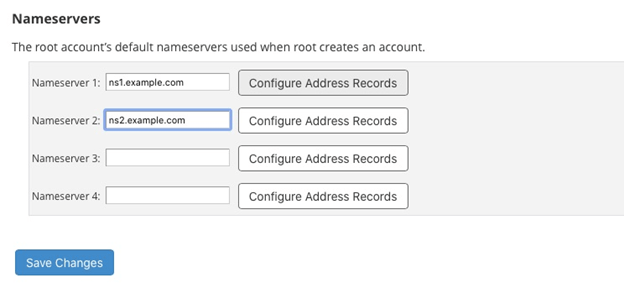
- Then click on the Configure Address Record button given next to each nameserver.
- Confirm that the IP address is the same as the cPanel server.
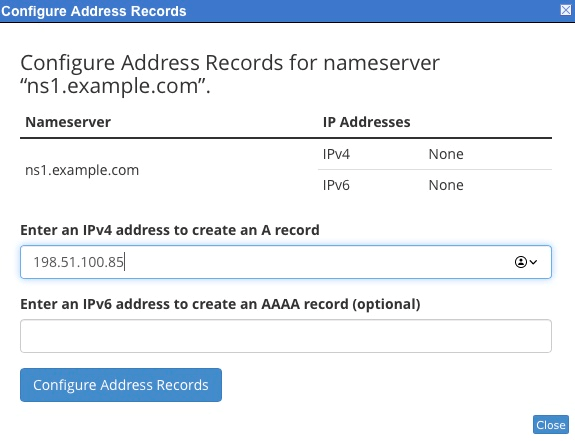
- Then you must inform the registrar regarding the DNS server’s domain names.
Conclusion
You can experience the best customer support from BanaHosting Nameservers in resolving any issues. Different plans and packages for hosting are available to choose from to suit your needs.
📌 Related: BanaHosting Login
📌 Related: Order Hosting from HostPapa
